
Invoice status, drafts and payments
What each status means, when you save a draft or issue, how Duplicate works, how Norman books issued invoices and how payments clear them.
Updated
An invoice passes through a few states in Norman: you save it as a draft or issue it right away, you send it, and it gets paid. This article shows what each status means, how Norman detects payments, and when you edit or correct an invoice.
The status of an invoice
- Draft: The invoice is saved but not issued yet.
- Unpaid: The invoice is issued or sent, the money has not arrived yet.
- Partly paid: Part of it is paid, the rest is still open.
- Overdue: The payment term has passed. Norman marks the invoice automatically.
- Paid: The payment is matched or you confirmed it.
- Cancelled: You created a cancellation invoice for it. The invoice is read-only.
Cancellation invoices, credit notes and delivery notes show Draft, Issued or Sent. Quotes have their own states: Draft, Open, Sent, Approved and Invoiced. Read Create quotes and convert them to invoices.
Save as draft or issue
In the editor you first click Next. On the last step, three cards set what happens after you save: Send to your client, Repeat automatically and Remind if unpaid. Below them are the buttons:
- Save issues a new invoice at once. When Send to your client is on, the button is called Save and send, and Norman emails the invoice right away.
- Save as draft keeps your work without issuing the invoice. The list shows it as Draft.
A draft is not an invoice yet:
- Norman never sends it by email. If Send to your client is on, Save as draft is not available.
- Norman matches no payment to it.
- Norman offers no e-invoice XML for it.
- You can delete it.
To issue a draft, open its menu and choose Issue invoice. In the editor the button on a draft is also called Issue invoice. On other documents it carries their name, for example Issue quote or Issue delivery note.
A draft keeps its number. If another document took that number in the meantime, the draft gets the next free number when you issue it. More in Invoice numbers and number sequences.
When Repeat automatically is on, Save as draft starts the series too. Its first invoice then stays a draft. Read Set up recurring invoices.
Leave the editor
If you leave the editor with unsaved changes, Norman asks Leave without saving?:
- Keep editing: You stay in the editor.
- Discard changes: Your changes are lost. No new invoice is created. A draft or an issued document stays as it was.
- Save as draft: Norman saves a new invoice or a draft as a draft. On an issued document this button is called Save and saves your changes.
If a detail is still missing, Norman does not save, and you stay in the editor. When Repeat automatically is on, Save as draft starts the series here too.
Duplicate an invoice
Duplicate in the menu copies an invoice or a quote. Norman creates a new draft of the same kind and opens it in the editor:
- The client, lines, terms, design and bank details come from the original.
- The date is today, the number is the next one in the sequence.
- The payment term is as long as on the original and counts from today.
- The draft is not linked to the original.
Norman also copies the service period and the delivery date. Check them before you issue the draft.
Related documents
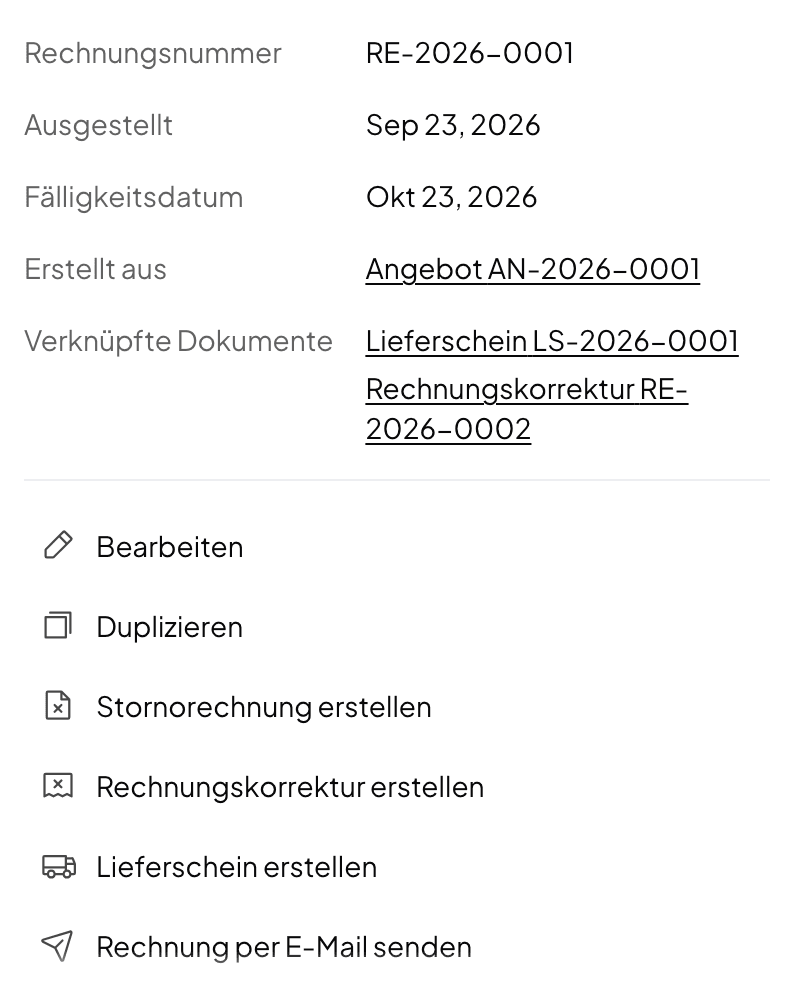
When you click an invoice in the list, its details show how it relates to other documents:
- Made from names the document it came from, for example a quote.
- Related documents lists what you created from it: a cancellation invoice, credit notes or delivery notes.
A click on an entry opens the document.
Issued invoices are booked at once
When you issue an invoice, Norman books it at once. The booking carries the end of the service period or the delivery date, else the invoice date. Norman books cancellation invoices and credit notes the same way, drafts and quotes never.
In the transaction list under Accounting, the booking shows From invoice. The source filter From invoices shows all these bookings. The Status column shows Unpaid, Partly paid or Paid.
A click on the booking opens it. There you change only the category, also per line item, and the Notes for tax advisor. The date, name, amounts, VAT and client come from the invoice. When you edit an unpaid invoice, Norman changes the booking with it. The booking also shows its payments and Mark as paid.
Of the bulk actions, only Change category applies to these bookings. The others skip them and tell you how many they skipped.
Invoice and payment in the transaction list
If a customer pays the whole invoice with one payment, the payment takes over the booking. One entry stays. With a part payment, one transfer for several invoices or an advance payment, the invoice and its payments appear as separate entries in the list. The payment then shows the invoice's category and VAT rate. You cannot change either in the payment. If the payment pays several invoices, or the invoice has several line items, it shows Mixed.
Norman still counts the amount only once: in the UStVA, in the EÜR or balance sheet and in your revenue. For a GmbH or UG the invoice counts, for the self-employed the payments count.
When an invoice counts for tax and revenue
- GmbH or UG (Soll taxation): The invoice counts in the month in which the service ends, paid or not. Its VAT goes into that month's UStVA. The later payment does not count again.
- Self-employed (Ist taxation): The invoice counts only with the money. Each payment counts on the day it arrives, in the EÜR and in the UStVA. The booking tells you so: Not paid yet, so this booking does not count in your revenue or tax returns. One exception: an invoice to a business in another EU country counts for VAT already in the month in which the service ends.
- Payment before the service (advance payment): For a GmbH or UG, the VAT on the advance goes into the UStVA of the month in which the money arrives. The rest of the invoice counts in the month of the service, and so does the revenue itself. For the self-employed, the advance counts like any payment, on the day it arrives.
Detect payments automatically
When your bank account is connected, Norman matches incoming payments to your invoices. It compares the amount and the time window: from one week before the invoice date until 30 days after the due date, and then up to 90 days. When everything fits, the invoice becomes Paid. The payment then takes over the invoice's booking, so one entry stays.
If you undo an automatic match, Norman no longer matches this invoice on its own. You then decide by hand.
Match payments by hand
- Mark as paid: At the bottom of the invoice's sidebar, click Mark as paid. Under Matching payments, pick the bank transaction. Norman preselects one only when a payment clearly fits: it names the invoice number, or it is the only one with exactly the amount after the invoice date. If several fit equally well, you choose. Search all payments finds other payments. If the money came another way, choose Paid another way, then Paid on and Paid by. Norman creates the payment and links it in one step.
- Amount: The Amount paid field starts with what is still open. Norman records at most what is open and at most what the chosen payment has left, and tells you so. If the payment is larger than the invoice, the rest stays for another invoice or a category.
- Part payment: If you record less than is open, Norman shows Payment recorded. Still open: …. The invoice then shows Partly paid. Its sidebar lists each payment under Payments with date and amount, and Still open below. A click on a payment opens it. You record the rest later the same way.
- One transfer for several invoices: Mark each invoice as paid and pick the same payment. Each invoice takes what is open on it.
- Proforma invoice: If you made the invoice from a paid proforma invoice, it takes over the proforma's payment when you issue it.
- Mark as unpaid: This takes the payments back. The invoice's booking is open again.
- Match transaction: On the invoice, link the matching bank transaction. It also works the other way round: open the transaction in Bookkeeping and assign the invoice to it.
Norman matches payments only to issued invoices. Drafts, cancelled invoices, cancellation invoices and credit notes get no payment, neither automatically nor by hand. A refunded invoice gets no new payment either: cancel it or issue a new invoice.
Every open booking has the same choice, also one from a document. Read Mark open bookings as paid.
Overdue invoices
On the day after the due date, Norman shows an unpaid invoice as Overdue. Click this status in the list to send a payment reminder or a dunning notice. You set up automatic reminders on the last step of the editor, with the Remind if unpaid card. The steps are in Payment reminders and dunning notices.
Change an invoice
- You edit a draft freely.
- You edit an open or overdue invoice with Edit in its menu. Norman creates the PDF again. If you already sent the invoice, send it again afterwards. If you move the due date of an overdue invoice to today or later, it is open again.
- A partly paid invoice cannot be edited. Mark as unpaid opens it again.
- A paid invoice cannot be edited. If it is wrong as a whole, create a cancellation invoice. If only part of it is wrong, create a credit note. The steps are in Cancel or correct an invoice.
- A cancelled invoice, a cancellation invoice and an issued credit note cannot be edited.
Delete an invoice
Delete removes an invoice for good. Use it only for drafts that never reached the customer. Cancel an issued invoice instead. You cannot delete a cancellation invoice or the invoice it cancels.
Refund to a customer
You record refunds in the bookkeeping, not through an invoice. Open the bank transaction and switch on Is it a refund?. Do not create a transaction with a negative amount. The steps are in Record refunds with the refund switch.
Add your VAT ID to invoices
If you want your VAT ID to appear on invoices, open the invoice settings, edit your business details, and add the VAT ID there.
Related articles
Norman handles the operational finance work
Invoicing, receipts, bookkeeping, and taxes in one workflow: start for free.