
Create a delivery note
Create a delivery note from an invoice or an approved quote. It shows lines and quantities without prices, and Norman files it under Files.
Updated
A delivery note goes with a delivery. It lists what you deliver, but no prices. Norman creates it from an invoice or a quote. You can also create one from scratch.
Create a delivery note from an invoice or a quote
- Open Invoices and open the menu of an issued invoice or an approved quote.
- Choose Create delivery note.
Norman issues the delivery note at once and opens its details. The message tells you that Norman filed it in Files.
The option is available for:
- Invoices with the status Unpaid, Overdue or Paid. It is missing on a draft and on a cancelled invoice.
- Quotes with the status Approved. If you already converted the quote into an invoice, create the delivery note from the invoice.
What the delivery note shows
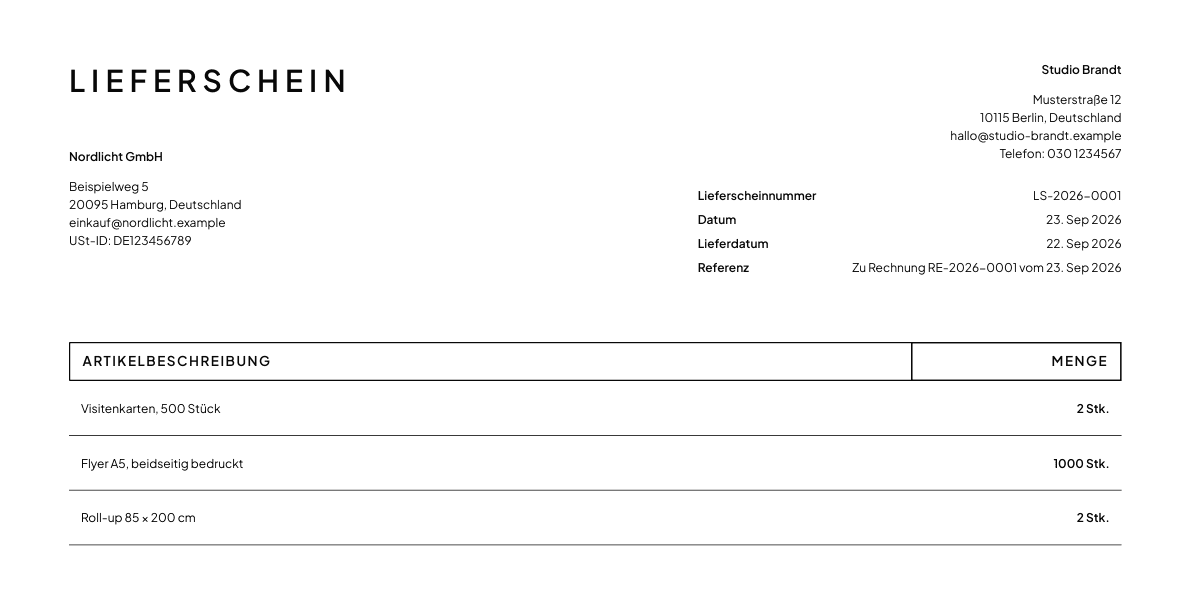
- The title Delivery note, the Delivery note number, the Date and the Delivery date.
- Every line with its name, description, quantity and unit.
- In the Reference row, the invoice or quote, for example "For invoice RE-2026-0007 dated Sep 12, 2026".
The delivery note shows no prices, no discounts, no VAT, no totals, no bank details and no due date.
Norman takes the delivery date from the invoice or quote. If it has none, Norman uses today's date.
A delivery note is not an invoice. It has no e-invoice.
Where Norman files the delivery note
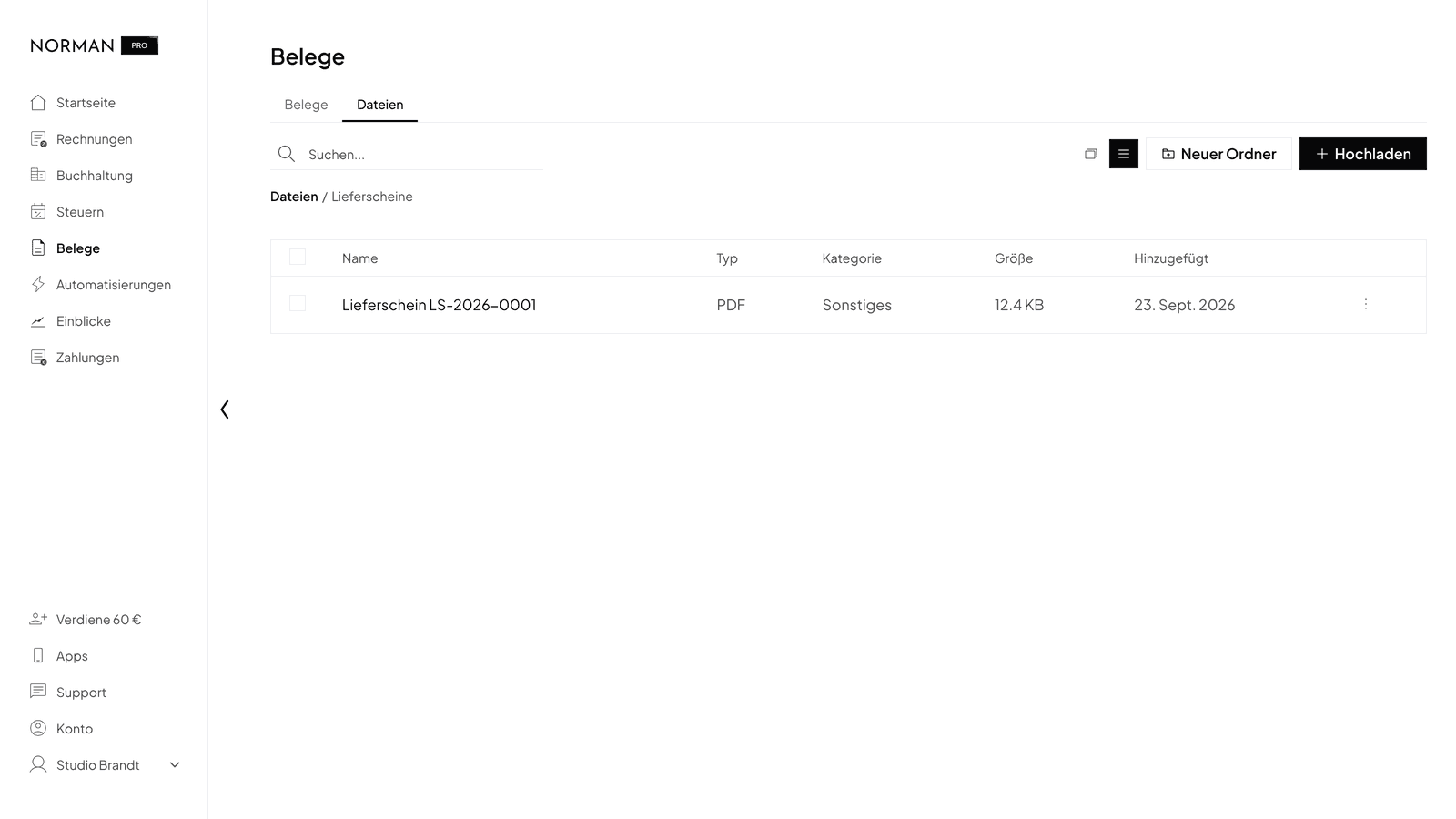
Norman files every delivery note as a PDF under Documents > Files in the system folder Delivery notes.
- If you edit the delivery note, Norman replaces the filed copy.
- If you delete the delivery note, Norman removes the filed copy too.
Partial deliveries
If you deliver in several parts, create a separate delivery note from the same invoice for each delivery.
- In the invoice menu, choose Create delivery note.
- Open the menu of the new delivery note and choose Edit.
- Change the quantities to what this delivery contains, and delete lines that come later.
- Adjust the Delivery date if needed, and save.
Norman replaces the filed copy.
Create a delivery note from scratch
- Open Invoices, click Create and choose Delivery note.
- Choose the client and enter the lines and quantities. Norman does not ask for prices.
- Set the Delivery date and click Next.
- Click Save. Save as draft keeps it without issuing it.
A delivery note made from scratch prints no reference.
Send the delivery note
Open the delivery note menu. Send by email sends it to your customer, Download gives you the PDF.
Numbers and links
Delivery notes have their own number sequence. In a new company it starts at LS-2026-0001, for example. Read Invoice numbers and number sequences.
The invoice or quote lists the delivery note in its details under Related documents. The delivery note shows its source under Made from.
Related articles
Norman handles the operational finance work
Invoicing, receipts, bookkeeping, and taxes in one workflow: start for free.