
Create quotes and convert them to invoices
From draft to invoice: the stages a quote passes through in Norman, how you mark it as approved and convert it into an invoice with one click.
Updated
With a quote you tell your customer which services and prices to expect before you work or deliver. When the customer accepts, you turn the quote into an invoice with one click. You type nothing twice.
Create a quote
- Open Invoices, click Create and choose Quote.
- Choose the client and enter the lines.
- Under Valid until, set how long the quote is valid.
- Click Next.
- Click Save to issue the quote. Save as draft keeps it without issuing it.
If you switch on Send before you save, Norman emails the quote to your customer right away.
Every quote gets a number from its own sequence. In a new company it starts at AN-2026-0001, for example. More in Invoice numbers and number sequences.
The stages of a quote
| Status | Meaning | How to move on |
|---|---|---|
| Draft | Saved but not issued. Norman does not send it. | Menu: Issue quote |
| Open | The quote is issued. | Menu: Send quote by email |
| Sent | You sent the quote by email from Norman. | Menu: Mark as approved |
| Approved | Your customer said yes. | Convert to invoice |
| Invoiced | The quote became an invoice. | No further stage |
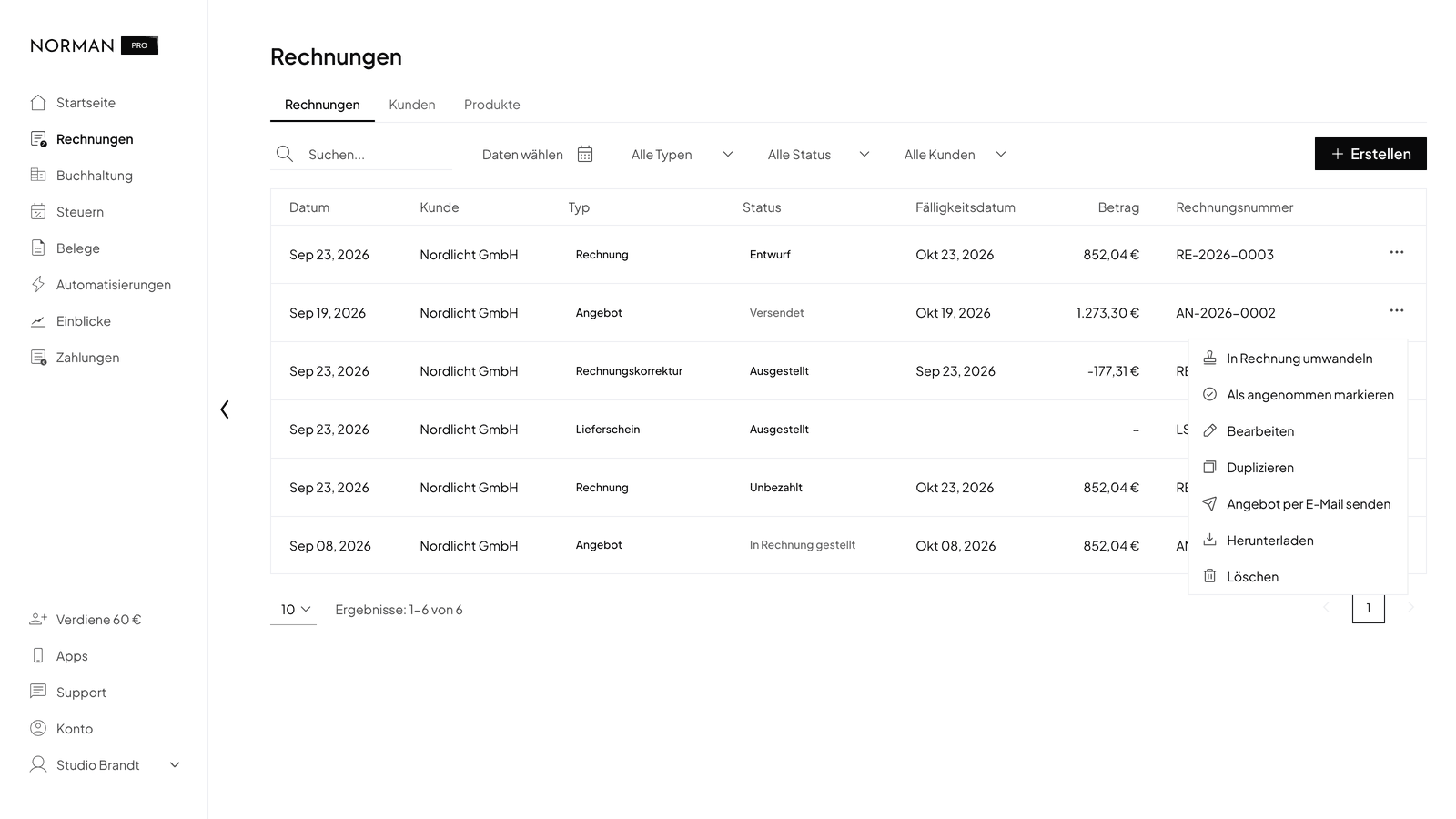
When your customer says yes, open the quote menu and choose Mark as approved.
Convert a quote into an invoice
- Open the quote menu and choose Convert to invoice. The quote details show the same button at the bottom.
- Norman creates a draft invoice and opens it in the editor.
- Check the invoice and click Next.
- Click Issue invoice.
You do not have to approve the quote first. Convert to invoice is available from the status Open on.
What the invoice takes over:
- The client, lines, language, currency, terms and design come from the quote.
- The invoice gets the next invoice number and today's date.
- It is due 30 days after the invoice date. The Valid until date only applies to the quote. If you need another payment term, change the Due date in the editor.
- Also check the service date or delivery date before you issue the invoice.
- The invoice PDF names the quote in the Reference row, for example "As per quote AN-2026-0003 dated Sep 12, 2026".
The quote stays and shows Invoiced. You convert a quote only once. If you delete the invoice, the quote shows Approved again, and you can convert it again.
Create a delivery note for a quote
You can create a delivery note from an approved quote. If you already converted the quote, create the delivery note from the invoice. Read Create a delivery note.
Copy a quote
Duplicate creates a new draft from a quote: the same client, the same lines, today's date and the next quote number. The copy is valid for as long as the original, counted from today. The copy is not linked to the original.
Related documents
In the quote details, Related documents lists the invoice and the delivery notes you created from it. The invoice shows the quote under Made from. A click opens the document.
Related articles
Norman handles the operational finance work
Invoicing, receipts, bookkeeping, and taxes in one workflow: start for free.