
Edit transactions: category, VAT, line items, finalizing
The transaction list and its filters, the sections of a transaction, splitting into line items, documents, finalizing and bulk actions.
Updated
Under Bookkeeping you find all transactions: from connected banks, from imports and created by hand. Every transaction needs a category, a VAT rate and a document. Then it is ready for the tax reports.
The list and its filters
At the top of the list you search by text or by amount, and filter by status, documents (With documents or Missing documents), sources, payment types, bank accounts, type and amount. With the periods you jump to a month or a quarter.
The search reads an amount however you write it: 1.190,00 and 1190 find the same transaction. A bare amount finds money in and money out. Put a minus in front, -1190, to find the expense only.
Under More filters, Amount takes a range. The range compares the size of the amount, so 100 to 200 finds a payment of 150 in either direction. Use the type filter to keep only income or only expenses.
The notice You have N transactions that need your attention shows how many transactions are still incomplete. Click it to go through them.
Open a transaction
Click a row. The detail view has five sections:
- Booking: category, amount incl. VAT, the switch Is it a refund? and the split into line items.
- Tax & VAT: supplier country, Was VAT charged?, VAT rate and sale type.
- Details: description, document date, payment date, payment type and the professional use share.
- History: the change log with every step: created, updated, finalized, reset, exported.
- Tax advisor: notes for your tax advisor.
Category and VAT rate
Norman suggests a category. Click the category to change it. If none fits, choose Add custom category. The VAT rate sits next to it. For a split transaction the list shows Mixed.
Tax & VAT: the section that matters most on expenses
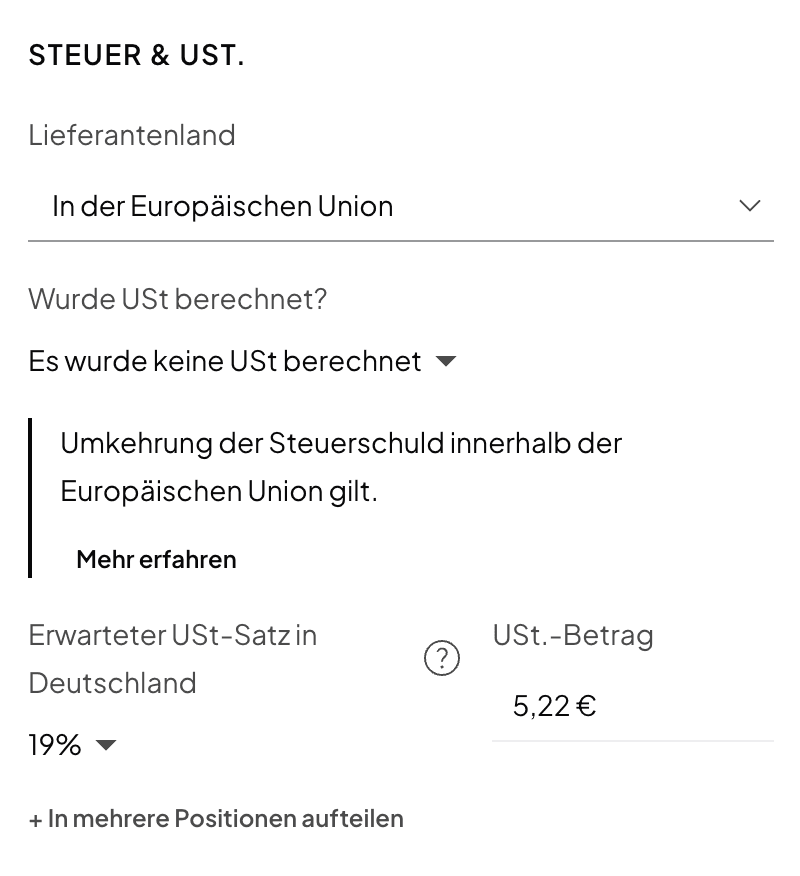
On an expense, this section decides whether Norman deducts input VAT and which line of the UStVA the expense lands in. The fields belong together:
- Supplier country: Germany, Inside the European Union or Outside the European Union. What counts is where the supplier sits, not the currency of the invoice.
- Was VAT charged?: No VAT was charged, German VAT was charged or Foreign VAT was charged. Answer it as the invoice says.
- Expected VAT rate in Germany with the VAT amount next to it: the rate that would apply in Germany. Norman uses it to calculate the tax you owe yourself under reverse charge and usually deduct as input VAT in the same move.
- Sale type: Goods or Services, depending on the transaction. For suppliers outside the EU it decides between import VAT and § 13b.
Below the fields, Norman writes in one sentence what your choice means, for example Reverse charge within the European Union applies. With Learn more you have Norman explain the note, right on the transaction.
This is where the most common mistakes happen: a foreign invoice without VAT is booked like a domestic expense with 19%, or foreign VAT is entered as German VAT. Which case leads to which box of the UStVA is explained in Reverse charge.
Split into line items
A receipt with office supplies at 19% and books at 7%, or a payment that covers two categories: click Split into multiple items. Every item gets its own category, its own VAT rate and its own professional share. The sum of the items must equal the amount of the transaction.
Attach documents
In the Document section, click Add. The Attach document panel lists the receipts and invoices under Documents that no transaction uses yet. For income it also lists your open Norman invoices. Search by vendor, number or amount, or upload a new file, then click Attach. Norman reads the date, the amount and the supplier from the document and fills in the fields.
Replace swaps the document. Unlink takes it off the transaction without deleting it. Additional documents holds supporting files that do not change the booking. Assign documents to transactions covers all of this, and the automatic matching.
Personal, internal transfer, refund
- Private payments get the category Personal. They do not count as income or expenses.
- Transfers between your own accounts get Internal transfer.
- Money back from a supplier or to a customer is marked with the switch Is it a refund?. Read Record refunds with the refund switch.
Finalize
With Finalize or the checkbox Finalize on save you finalize a checked transaction. It then shows Finalized with the date. Finalized transactions are locked against accidental changes, and the UStVA only asks about the open ones.
If you must change something, open the transaction and switch Finalized off. Norman writes this as Reset into the change log. If the transaction lies in a period whose UStVA you already filed, file the UStVA again afterwards. Read Correct a submitted UStVA.
Bulk actions
Select several transactions. The bulk actions appear at the bottom:
- Change category: only for transactions of the same kind, so only income or only expenses.
- Change VAT: one VAT rate for all selected.
- Categorize with AI: Norman suggests a category for each transaction and sets it.
- Finalize: all selected at once. Check category, VAT rate and document first.
- Delete: removes the selected for good.
Delete
Deleted transactions are gone for good. Delete only wrong entries and duplicates from imports. Do not delete a real bank movement to hide it. Give it the category Personal or Internal transfer instead.
Assets
For a larger purchase Norman asks Is it a depreciable asset?. If you confirm, Norman creates an asset with a useful life and spreads the cost over the years.
Related articles
Norman handles the operational finance work
Invoicing, receipts, bookkeeping, and taxes in one workflow: start for free.