
Create and file the UStVA in Norman: step by step
From the prerequisites through the preview to the transmission to the Finanzamt and the payment: how to file your VAT advance return with Norman.
Updated
The VAT advance return (UStVA) tells the Finanzamt every month or quarter how much VAT you collected and how much input VAT you paid. Norman calculates it from your transactions and transmits it through ELSTER. You check the figures, look at the preview and approve.
Prerequisites
- Tax settings: Open Account → Taxes. The VAT type is set to VAT subject, the VAT advance return period to monthly or quarterly, and the tax number and the federal state are entered. Kleinunternehmer and VAT-exempt businesses see no UStVA cards.
- A confirmed e-mail address and a paid plan. You can create the preview on every plan. To transmit, Norman needs both. Read Plans, managing and cancelling your subscription.
- Recommended: maintained transactions in the period. Category, VAT rate and document are set. Open transactions do not hold up the filing, but Norman reminds you about them.
1. Open the report
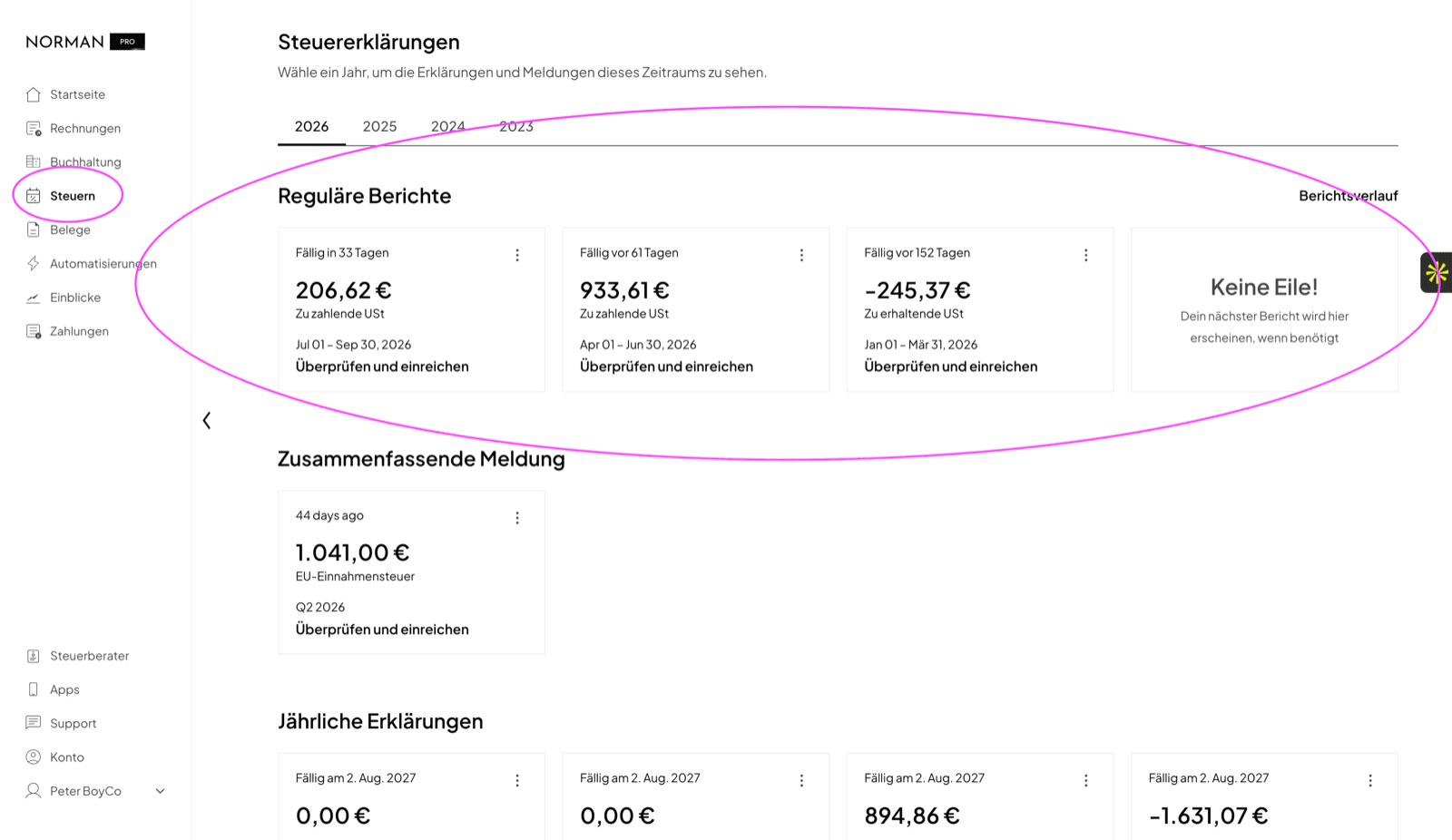
- Open Taxes and choose the year.
- Under Regular reports there is one card per period: the deadline, the amount, the period and the status. If it says No rush!, nothing is due right now.
- Click Review and submit on the card.
2. Check the figures
At the top you find Verify personal details: name, address, your responsible tax office and the tax number. Check them and change them with Edit details if needed. Wrong details lead to a rejection by ELSTER.
Below you find the figures of the period in three blocks:
- VAT on domestic revenue: your revenue, split into 19% and 7%.
- VAT on domestic expenses: the input VAT you get back.
- Reverse charge, intra-EU, and international VAT: services to EU businesses, intra-community supplies, exports, and services you bought from abroad.
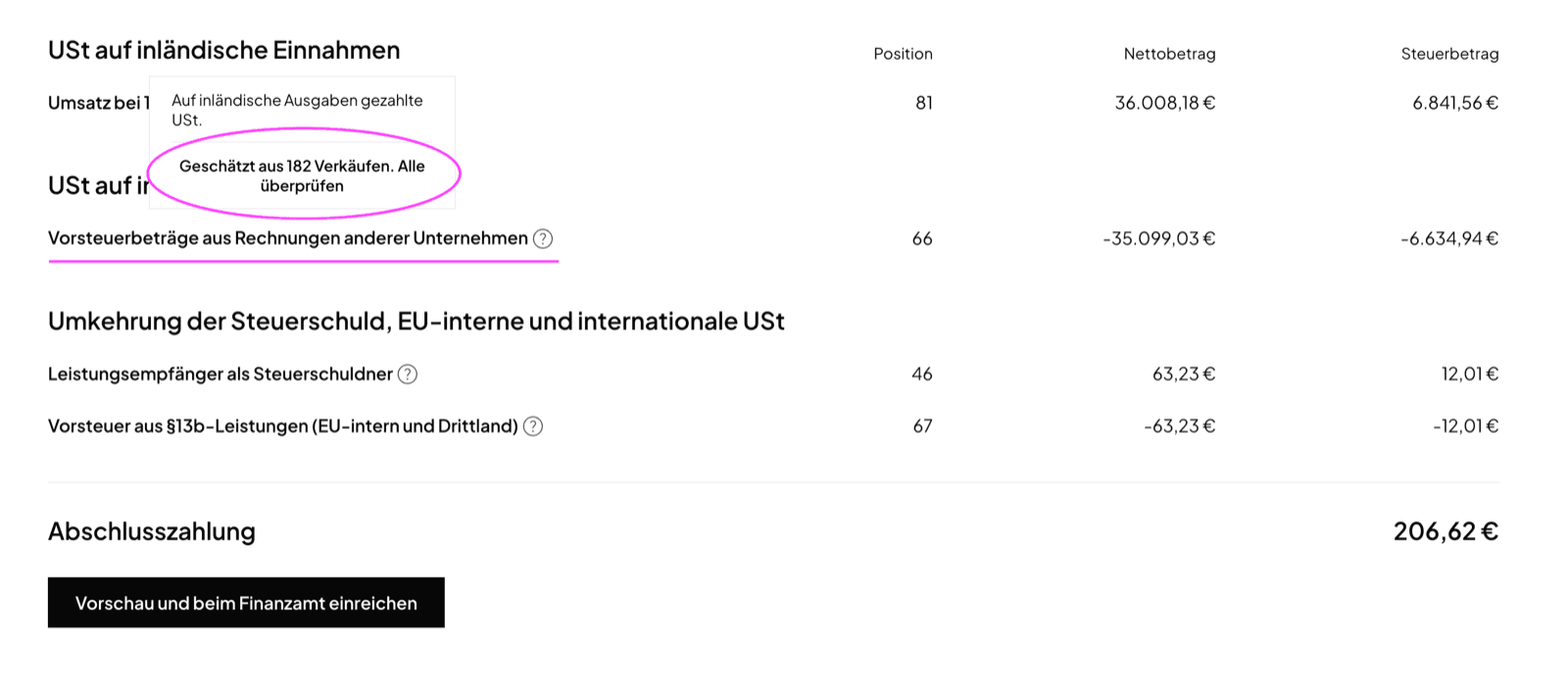
At the bottom you find the Final payment. The Position column names the box in the official form, next to it the Net amount and the Tax amount.
Which invoices appear in the revenue lines depends on how you are taxed. For a GmbH or UG, an issued invoice counts in the month in which the service ends, even unpaid. An advance payment before the service counts in the month in which the money arrives. For the self-employed, each payment counts in the month it arrives. More in Invoice status, drafts and payments.
Every line has a question mark. It explains what belongs in the line, and for estimated lines it names the records behind it, for example Estimated from 182 sales. Review all. The link opens exactly those transactions. All transactions opens the whole period. There you correct the category, the VAT rate or the document. The report recalculates every time you open it.
3. Unfinalized transactions
If transactions in the period are still open, the report shows Finalize N transactions for accurate tax reporting at the top. When you submit, Norman asks once more with Please review unfinalized transactions.
Both are a reminder, not a gate. With Continue you can file while transactions are still open.
The other way is still the better one, because the figures of the return come from exactly these transactions:
- Click Review N transactions or All transactions.
- Check every open transaction: category, VAT rate, document. Finalize it.
- Go back to Taxes and open the report again.
Norman is a calculation tool. You are responsible for the content of the return.
4. Look at the preview
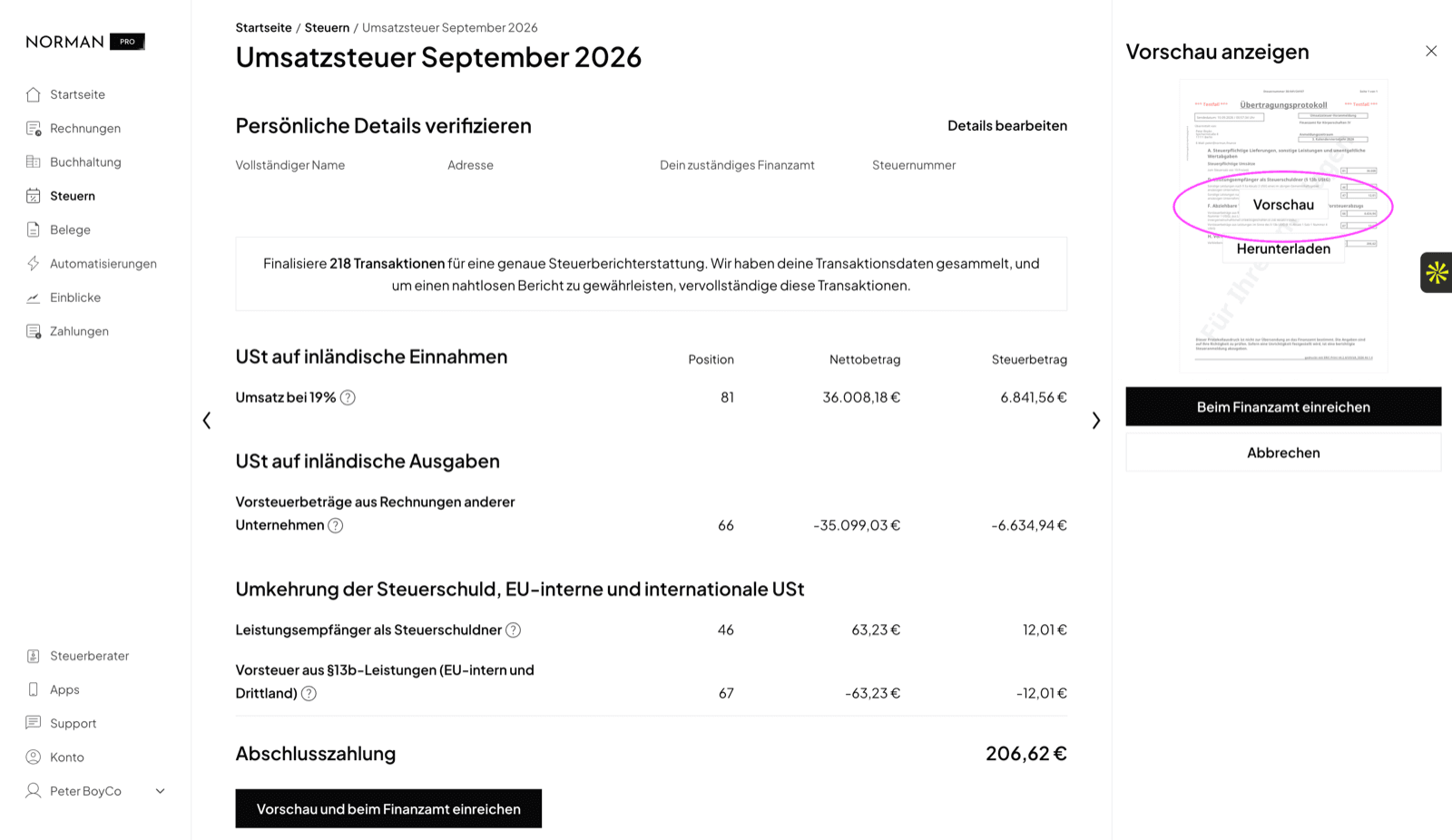
This is the step not to skip. Click Preview and submit to Finanzamt at the bottom. Norman sends the return to ELSTER as a test case and shows the result on the right under Preview report: the transmission protocol with your figures, exactly as the Finanzamt receives it. The Testfall stamp means nothing has been transmitted yet.
Hover over the document:
- Preview opens it at full size.
- Download saves it as a PDF for your records.
Read it once from top to bottom:
- Are the tax number, the tax office and the address in the header correct?
- Do the amounts sit in the lines you expect, and only there?
- Does the final payment match your period?
The preview costs nothing, commits you to nothing, and runs through the same checks as the real filing. Mistakes in your master data or in the figures show up here, not later in a letter from the Finanzamt. After the transmission the figures are fixed: every later change becomes a correction. These two minutes are the cheapest place to catch an error.
5. File
- Click Submit to the Finanzamt in the preview. Norman transmits the UStVA through the certified ELSTER interface. You need no ELSTER account of your own. Cancel closes the preview without transmitting anything.
- If transactions are still open, Norman asks. Review N transactions takes you to the list, Continue files anyway.
- Norman shows Tax return submitted successfully! and the tax amount due. With a credit it says: You will receive a refund of …
- The status of the card changes to Submitted.
You receive an e-mail with the transmitted report as a PDF. You find the same report under Taxes → Report history and in the vault in the folder Tax reports. What exactly goes to the Finanzamt is explained in Report history and data sent to the Finanzamt.
6. Pay
The VAT is due on the 10th day after the end of the period. You have three ways:
- SEPA direct debit: If your Finanzamt has a direct debit mandate, tick My Finanzamt collects taxes by SEPA direct debit in the tax settings. After filing, Norman then shows No action required.
- Pay now: Pay directly from Norman from a connected bank account to the IBAN of your Finanzamt. The IBAN is on your last tax assessment. Your bank confirms the payment.
- Pay later: The window closes. You pay later from Norman or transfer the amount yourself. For your own transfer, put your tax number and the period in the payment reference.
If you pay from Norman, Norman sets the status to Submitted and paid once your bank confirms. If you transferred the amount yourself, open the card's menu in Report history and choose Mark as paid.
Reopen the payment window
If you closed the window after filing, open the payment again like this:
- Open Taxes and click Report history. A submitted UStVA no longer shows under Regular reports.
- Click View on the card of the period.
- Click Pay now at the bottom of the report. The window Pay tax report opens.
- Check the Finanzamt IBAN, choose your bank account under Pay from and click Pay now. Your bank opens in a new tab. Confirm the payment there.
The Pay now button stays in the report until the tax is paid. After a cancelled or failed payment it reads Retry. If the payment is still waiting for your bank, the report shows Refresh status. Paying from Norman is available only for a UStVA with an amount to pay.
After filing
- Something changed: If you change transactions of the period after filing, file the UStVA again. Norman then transmits a correction. Read Correct a submitted UStVA.
- Filed outside Norman: Choose Mark as submitted in the card's menu, so Norman treats the period as done.
- No revenue in the period: You still file. Read VAT return with no revenue.
- Services to EU businesses: These also need the EC Sales List (ZM). Read Why can't I see the Zusammenfassende Meldung?.
Related articles
Norman handles the operational finance work
Invoicing, receipts, bookkeeping, and taxes in one workflow: start for free.