
Book and assign documents
How Norman books a document at once, how its bank payment takes the booking over, and how to attach, replace, or unlink a document yourself.
Updated
Why a booking needs a document
Every business booking in your bookkeeping should have a document behind it: a receipt, a supplier invoice, or one of your own invoices. The document shows what the money was for.
To deduct input VAT on an expense, you generally need a proper invoice from the supplier. Keep the file, not just the bank line.
Norman tracks the gap for you. On the Accounting page, filter the list by Without documents to see what is still open.
Bookings without a document of their own
The bank statement already documents some bookings. They need no document of their own. Norman marks a booking as needing no document as soon as it gets one of these categories:
- Personal: private payments
- Internal transfer: transfers between your own accounts
- Capital contribution: money you pay into your business privately
- Advance VAT return: payments to the tax office and refunds from it
For a GmbH or UG, the same holds for the accounts Transfers between own accounts, VAT payment / refund (USt-VZ), VAT special prepayment / refund (1/11), Share capital contributions and Additional paid-in capital.
Marked bookings do not appear under the filter Without documents. You can always change the mark:
- You can still attach a document at any time: open the booking and click Add in the Document section.
- Click Document required to remove the mark.
- When you switch to a category that needs a document, Norman removes the mark again.
You mark any other booking yourself. Open it and click Not required. This fits bank fees without an invoice of their own, for example.
Many bookings at once: Select the bookings in Accounting and click No document needed in the bulk actions. Norman skips finalized bookings and bookings that already have a document. A message tells you how many it skipped.
Automatically with a rule: For recurring cases such as the fees of your payment provider, create a rule under Automations and pick the action Mark as needing no document. Every new booking that matches the rule gets the mark. The rule leaves finalized bookings and bookings with a document alone. Norman applies the first matching rule to each booking. If the same rule should also set the category, give it both actions.
Documents book themselves
Norman reads every document you upload: the amount, the date, and whether it is revenue or an expense. If no payment fits it yet, Norman books the document at once:
- The booking carries the document's date.
- Its payment type is Not paid.
- The list in Accounting shows Automatic. In the source filter, these bookings are called Created automatically.
When the bank payment comes later, it takes the booking over. One entry remains: the Date is the document's, the Payment date is the day of the bank payment.
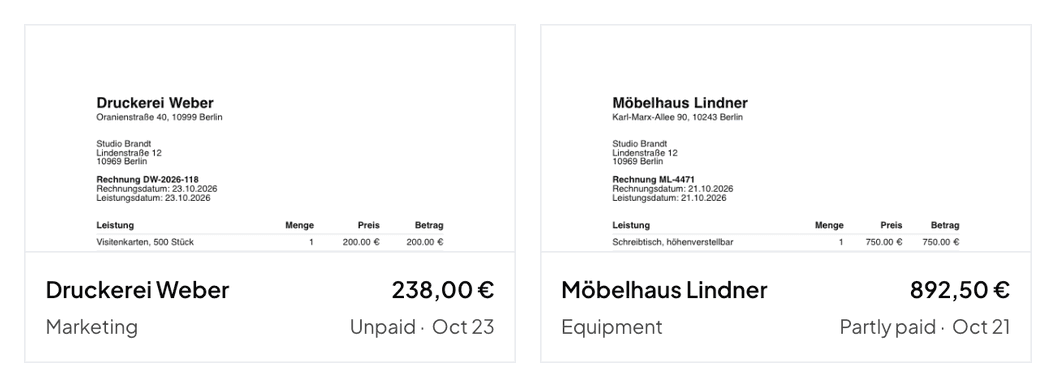
If the payment is already in the list when the document arrives, Norman attaches the document to that payment. No second booking is made.
This applies to German companies: GmbH, UG and the self-employed. How you mark an open booking as paid, and which date counts for tax and bookkeeping, is in Mark open bookings as paid.
Revenue or expense
Norman looks for your company on the document: your VAT ID, your tax number, your IBAN or your name. That tells Norman whether you issued the document or received it. Norman books a document you issued as revenue, one you received as an expense.
If none of these is on the document, the place you uploaded it decides: with your revenue or with your expenses. If that is unclear too, Norman books it as an expense.
If Norman booked revenue as an expense or the other way round, delete the booking and keep the document. Then open the document in Documents, click Add booking, and choose the right Cashflow type.
Norman books an invoice you issued outside Norman as revenue on its service date.
The document shows its booking
Open a document in Documents. The Booking section shows the booking's date, amount and status: Unpaid, Partly paid or Paid. If Norman made the booking from the document, it adds Created automatically.
After a part payment you see how much is paid, for example Paid €50.00 of €119.00. While the booking is open, you mark it as paid here with Mark as paid.
When the payment comes after the document
Each time Norman imports new bank transactions, it checks them against your open bookings from documents. If a payment fits for certain, it takes the booking over. If two fit equally well, Norman connects neither, and you choose yourself with Mark as paid.
This is why early uploads pay off. Upload an invoice weeks before the money leaves your account. It is in your books at once with its date, and the payment finds it later.
Match my documents
Open the home page and click Match my documents. Norman runs the match on demand. It looks at every document that has no booking yet, however long ago you uploaded it, and compares each one with all your bookings that still have no document. The run takes a moment, and the chat shows the result when it is done.
You get a short summary: how many documents Norman linked, and what is left. It also says when a link could not be saved, for example because the period is closed, and when a very large backlog needs a second run. The Document matching card points at the two open piles:
- ... documents need your decision opens the review page.
- ... transactions have no document opens the filtered list.
A booking you already finalized stays as it is. Norman attaches the document and leaves the category, the VAT and the finalized state exactly as you set them.
Review the ones Norman could not decide
If Norman cannot book a document, for example because the amount or the date is missing, it stays without a booking. Open Documents. Above the months, these documents have their own block, for example 3 documents have no booking. Click Review documents there. On the home page, the task Review 3 documents without a booking leads to the same review.
If Norman could not create the booking, the document shows Not booked: add the booking. Every line needs a category; if one is missing, it says so under the line.
Norman shows one document at a time, with a preview and the details it read from the file. Two tabs sit next to it:
- Match existing lists suggested bookings. Each suggestion says why it is there: Amount match, Date match, or Text match. Select one and click Confirm.
- Add booking builds a new booking from the document. It starts as Not paid, because its bank payment takes it over later. If the money came in cash or through an account Norman does not see, mark it as paid afterwards.
If no suggestion fits, use the search box above the list. It searches the bookings that have no document yet.
Skip moves to the next document. Skipped documents are not lost. They appear again the next time you open the review page.
Delete document removes the file for good. That is the right answer for duplicates and for files that are not documents at all.
Attach a document yourself
Open a booking in Accounting. In the Document section, click Add. The Attach document panel opens.
The panel lists every receipt and invoice file that is not assigned yet, newest first. Select a row and click Attach.
On a payment, the panel also offers documents that already have an open booking. If you attach one of them, the payment takes that booking over.
Move the pointer over a row and click Preview to check the file first.
Nothing uploaded yet? Use Upload inside the panel. Norman accepts PNG, JPG, WEBP, XML, and PDF files here. The new file is selected for you right away.
On an income booking the panel also shows Your Norman invoices: the open invoices you created in Norman. Norman puts the three closest ones first, by amount and date. Use Show all ... for the rest. Drafts, cancelled invoices, cancellation invoices and credit notes do not appear here, because they take no payment.
Search inside the panel
The search box takes three kinds of input, as the placeholder says: Vendor, number or amount.
- Vendor: type any part of the vendor or file name.
- Number: type the invoice or receipt number.
- Amount: type the amount in any common notation. Norman understands thousand separators, so
1190,1.190,00, and1,190.00all find the same document.
Replace or unlink a document
When a booking already carries a document, the Document section shows two buttons:
- Replace opens the panel again, so you can pick a different document.
- Unlink takes the document off the booking.
Unlink does not delete the file. The document returns to your document list as unassigned and is ready for another booking.
Both buttons stay inactive while the booking is marked Finalized. Switch Finalized off first.
An open booking from a document or from an invoice shows neither button. To separate a booking from its document, delete the booking. An invoice you cancel instead.
Additional documents
A booking has one main document. That document drives the booking: the amount, the date, and the VAT come from it.
Everything else belongs under Additional documents. A delivery note, a contract, an order confirmation, or a payment confirmation are good examples. The section appears once the booking has a main document. Click Add there and pick one or several files, or upload them from the same panel.
Supporting documents are stored as they are. Norman does not read them, and they never change the booking.
Two things follow from that:
- A receipt or invoice you attach as a supporting document no longer counts as unassigned. It stops appearing in the review queue and in the picker.
- Removing a supporting document takes it off the booking. A receipt or invoice you picked from your documents stays in your document list. A file you uploaded directly as a supporting document is removed with it, because nothing else uses it.
What counts as an unambiguous match
Norman connects a document and a payment on its own only when one answer is clearly right. That means one of two things:
- The payment names the document number, the IBAN, or the vendor of the document. Very short numbers are ignored, because
42would match almost anything. - Exactly one payment fits by amount and date.
An invoice may be paid later, because that is how payment terms work. For a payment in another currency, Norman allows a small difference in the amount.
If two payments fit equally well, Norman links neither. The same holds the other way round: if two documents fit one payment, Norman links neither. A wrong link costs you more than a short stop.
Do you have to upload your documents?
No. Uploading is not obligatory. You can categorise your bookings, run your bookkeeping and submit your tax returns in Norman without uploading a single file.
We still encourage you to upload them, for two reasons.
Everything sits in one place. Your documents live where your accounting lives. Years later, when a question comes up, you are not searching through mail folders and hard drives.
It saves you work. Norman reads an uploaded document and takes over what it finds: the vendor, the date, the amount and the VAT. That is data you no longer type in yourself, and with it Norman books the document and finds its payment.
Where and how you keep your documents is your decision. Norman works either way.
Related articles
- For the other way round, from a booking to its document, read Review bookings.
- Mark open bookings as paid
- For uploads that stay stuck in processing, and for exporting your documents, read Exports, categories, documents, and personal transactions.
Norman handles the operational finance work
Invoicing, receipts, bookkeeping, and taxes in one workflow: start for free.