
Tax advisors: client list, to-do and Inbox
The client list shows for a month, a quarter or a year what is open at each client. At a client, the Copilot shows each task of the period with the button that starts it, plus the bank balance and the last six months.
Updated
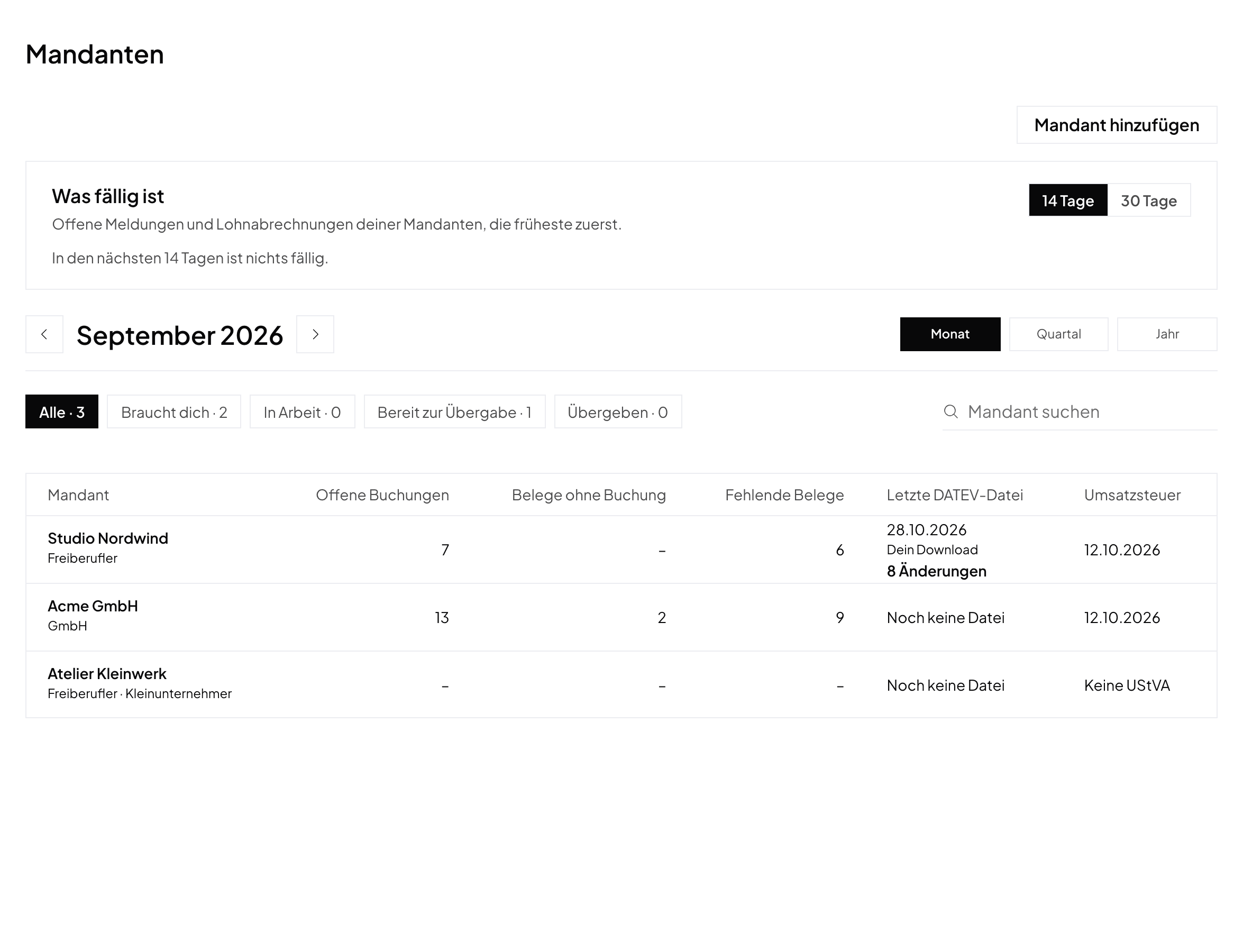
As a tax advisor, you see all your clients for one period under Clients. The list shows what is open at each client and who needs you first.
Pick the period
- The list starts with last month.
- Pick Month, Quarter or Year at the top. The arrows move to the previous or the next period.
- You cannot pick a period in the future.
What the columns show
- Open bookings: bookings of the period that are not finalized yet. Unpaid bookings do not count, because they wait for their payment.
- Documents without a booking: documents of the period that no booking holds yet. A document without a date counts in the month of its upload.
- Missing documents: bookings of the period without a document.
- Last DATEV file: the date of the newest DATEV file of the period and how it reached you. Without a file for the period, the newest file of an earlier period shows. If something changed since the file, the number of changes shows below it. See Changes since the last DATEV file.
- VAT return: the due date of the period's advance VAT return (UStVA), or Filed with the date it was sent. For a Polish client, this is the JPK_V7. A Kleinunternehmer or a VAT-exempt company has a return only when tax arises in the period, for example through reverse charge. Otherwise it says No VAT return, as it usually does for a yearly filer.
A click on a count opens that client's list for exactly this period. A dash without a number means nothing is open, or your client or your practice has not opened this area for you. Hover over it and Norman names the closed area.
If your practice has a team, the Handled by column shows who handles the client. Owners and managers set this with Change.
The filters
Above the table, you pick which clients you see. Clients that need you come first in the list. A client shows in grey if its period is handed over or its bookkeeping is not opened for you.
- Needs you: something changed since your DATEV file of the period, or bookings of the period have no document.
- In progress: there are open bookings or documents without a booking.
- Ready to hand over: nothing is open, and there is no DATEV file of the period yet.
- Handed over: you have the DATEV file, nothing changed since, and nothing is open.
The Copilot at a client
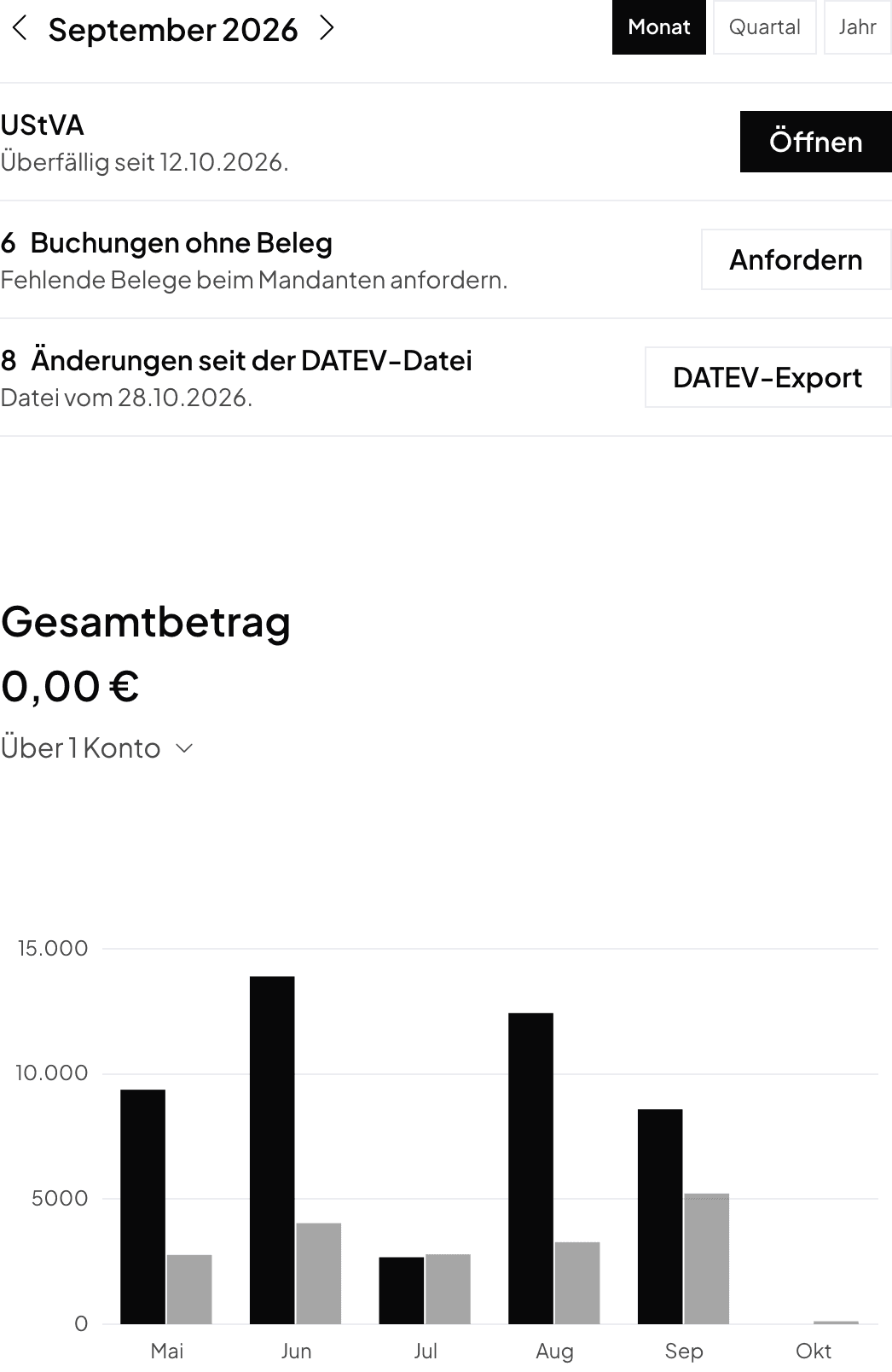
Click a client. Norman opens the client's Copilot. On the right are three blocks: the tasks of the period at the top, the bank balance in the middle, the last six months at the bottom.
The tasks of the period
At the top, you pick the period, just like in the client list. Each task has a button that starts it:
- Documents without a booking: Match opens the period's documents. There you create a booking or match the document to a payment.
- Bookings without a document: Request sends your client one request for the missing documents of the period. The request covers exactly this month, quarter or year.
- Finalize bookings: Review takes you through the period's open bookings, one at a time.
- DATEV file or Changes since the DATEV file: DATEV export opens the export for the period in DATEV format.
- VAT return, or JPK_V7 for a Polish client: Open shows the return, with its due date or Overdue since.
- Unread messages: Read opens the messages.
Norman shows at most three tasks, the most important first. The DATEV export is always one of them, also when you already have the file. Done tasks disappear, and the next one moves up. The first button is the next step.
Bank balance and the last six months
- Total balance is the balance of all your client's bank accounts.
- A click on the account count below it, for example Across 2 accounts, shows each account with its balance. A click on an account opens only that account's bookings.
- The chart shows revenue (black) and expenses (grey) of the last six months. The current month is on the right.
The menu
- At the top are your firm's pages: Clients and Inbox.
- Below is the client you opened. A click on the client's name switches to another client or opens the client's settings.
- Then come the client's pages: Copilot, Accounting, Documents, Taxes, Messages, Revenue, Expenses and Insights.
- At the very bottom, Account opens the Settings and Logout.
Your settings
Account → Settings has four tabs:
- Practice: your practice's name, tax number and address.
- Personal: your name, your advisor number, your phone and your ELSTER certificate.
- Team: the people of your practice and what each person may open.
- Settings: security, language and appearance.
The Inbox
The Inbox shows the clients with unread messages or open document requests. A click on a count opens that client's messages or requests.
Archive conversations
- Open a conversation under Messages and click the archive icon at the top (Archive). The conversation leaves your list.
- Only your list changes. Your client still sees the conversation.
- Norman deletes nothing. Archived shows your archived conversations. There, Move back to the list brings one back.
- When a new message arrives, the conversation is back in your list.
Norman handles the operational finance work
Invoicing, receipts, bookkeeping, and taxes in one workflow: start for free.