
Review bookings
How to review your open bookings one at a time: those without a document first, with matching documents, bookings and payments to assign.
Updated
Where the review starts
Under Accounting, above the list, Norman shows how many bookings are still open, for example 37 open bookings. A booking is open until you finalize it. Click Review next to it.
On the home page, the task Review 37 open bookings leads to the same page.
When no booking is open, Norman shows neither the line nor the task.
The order
Norman shows one booking at a time, newest first:
- First come the bookings without a document.
- Then come all other open bookings.
At the top right, Norman shows where you are, for example Booking 9 of 15.
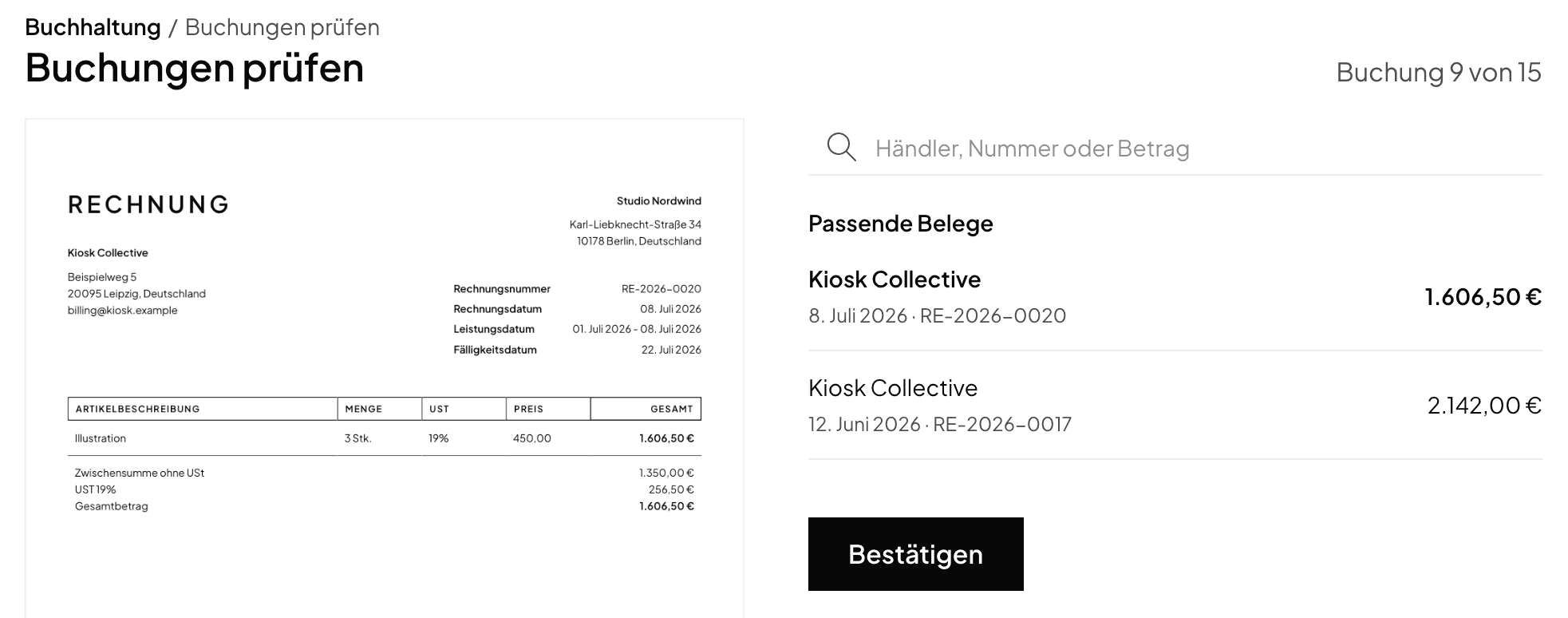
Assign
On the left, Norman shows the booking's document. If it has none yet, it says No supporting document.
On the right, Norman suggests what fits the booking:
- Matching documents: uploaded documents without a booking and, for revenue, your open Norman invoices.
- Matching bookings: open bookings that this payment pays.
- Matching payments: payments that pay this open booking.
Norman chooses the first suggestion. Click another one to choose it. Its document then shows on the left, so you see it before you assign it. If none fits, search in the field Vendor, number or amount. Then click Confirm.
What Confirm does:
- A document is attached to the booking.
- If a payment pays an open booking in full, it takes the booking over. One entry stays, with the document. If it pays only part, the rest stays open. Read more in Mark open bookings as paid.
Check and finalize
Below the suggestions are the booking's details: document, date, name, category, amount and VAT. Change what is wrong.
Tick Finalize on save and click Save. Norman saves the booking, finalizes it and shows the next one. If the booking has a document, the box is already ticked.
You do not finalize an open booking. It waits for its payment.
To review a booking later, click Skip.
When you are done
When you have reviewed every booking, Norman takes you back to Accounting.
If you skipped bookings, Norman shows All open bookings reviewed. Review skipped bookings goes through them again, and Exit stops.
Related articles
Norman handles the operational finance work
Invoicing, receipts, bookkeeping, and taxes in one workflow: start for free.