
Search Norman and fold the sidebar
How to find invoices, transactions, documents, clients and any feature through search, and how to fold the sidebar to an icon strip.
Updated
Search takes you to your data and features without clicking through the menu. Type quotes, Mollie or a client's name, for example, and open the result directly. This guide covers the Norman web app.
Open search
- On a computer: Click the magnifying glass next to the logo at the top of the sidebar, or press
Cmd+Kon a Mac andCtrl+Kon Windows. - In a browser on your phone: Open the menu and tap Search at the very top.
Type at least two characters. Use the arrow keys to pick a result and Enter to open it. Press Esc to close search.
Find features and pages
Go to lists the areas of Norman that match your term. You can type their names in German or English.
| You type | Norman shows |
|---|---|
quotes or Angebot | Quotes and Create quote |
Mollie | Mollie under integrations |
tax advisor | Invite tax advisor |
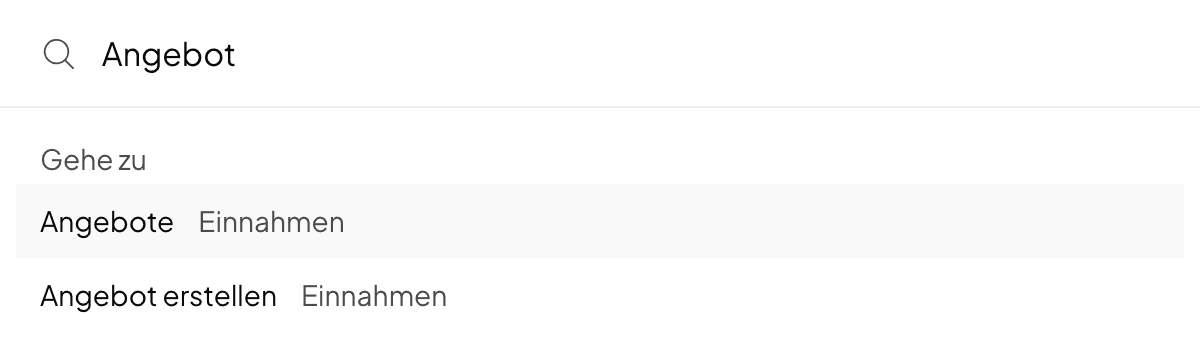
You only see what your company can use. A freelancer, for example, sees no annual close. If search does not find a feature, it is not available for your company or your role.
Find invoices, transactions, documents and clients
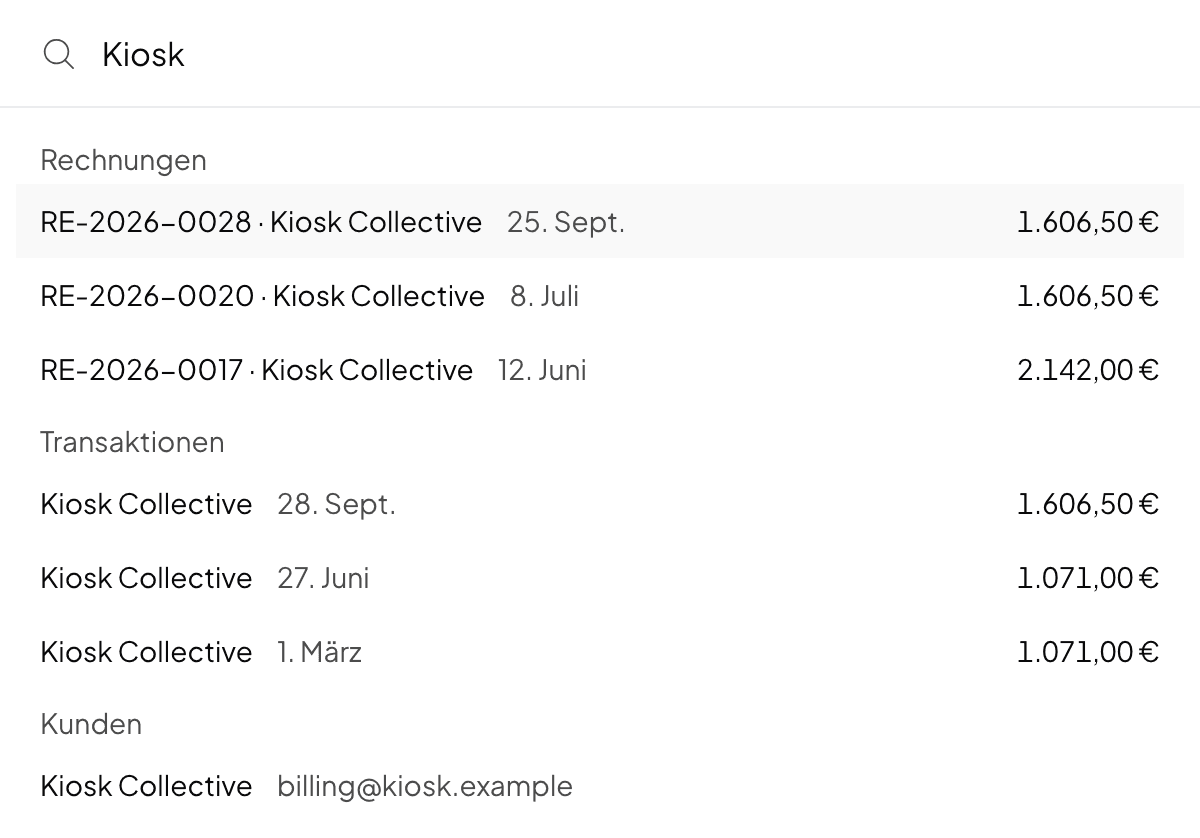
Norman searches the data of the company you are working in. If you have several companies, switch company first. Each group shows at most three results. If you do not see the entry you want, type more of the term.
| Group | You find it through, for example | A click opens |
|---|---|---|
| Invoices | number, client or amount | the invoice |
| Transactions | name of the other party, payment reference or amount | the transaction list with just this transaction |
| Documents | file name | the document's month, filtered by your term |
| Clients | name, email address or VAT ID | the client list, filtered by the name |
Fold the sidebar
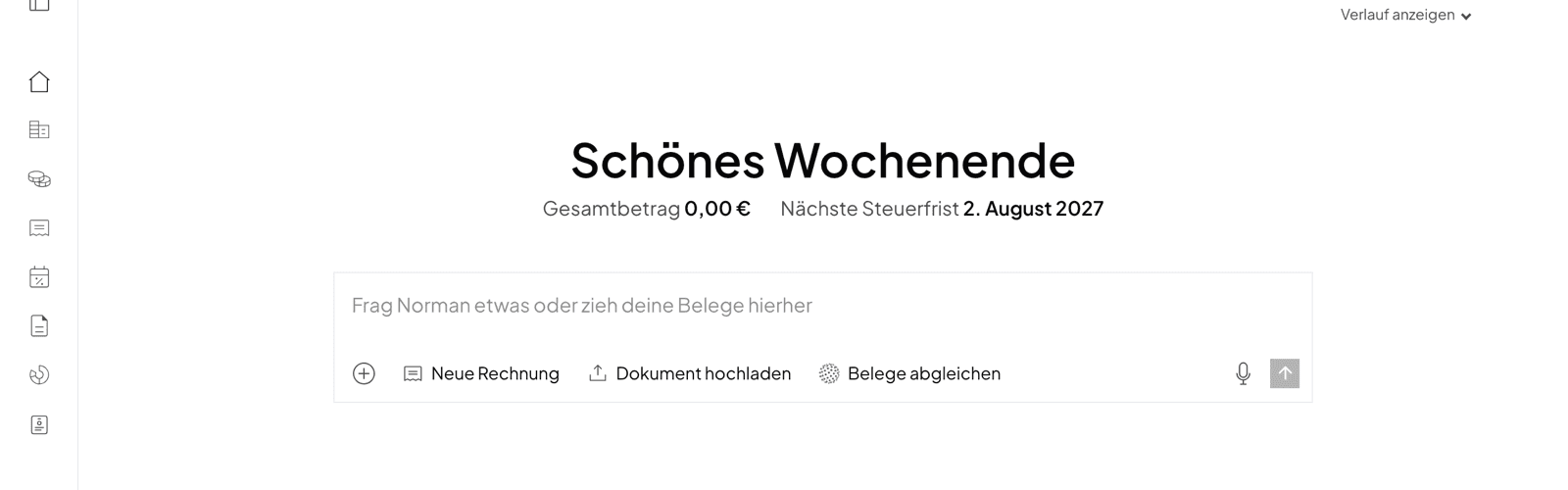
Click the icon to the right of the magnifying glass at the top of the sidebar. The sidebar becomes a narrow strip of icons, and your page gets more room. Norman remembers your choice in this browser.
How to work with the icon strip:
- Open an area: Click an icon. It leads to the same area as the entry in the full sidebar.
- See the names: Move the mouse over the strip. The full sidebar opens over the page and closes again when you move the mouse away.
- Search: Press
Cmd+KorCtrl+K, or move the mouse over the strip and click the magnifying glass. - Unfold it: Click the Open sidebar icon at the top of the strip.
In a browser on your phone there is no icon strip. There you open the menu and close it again.
Related articles
Norman handles the operational finance work
Invoicing, receipts, bookkeeping, and taxes in one workflow: start for free.