
Change the language and appearance: web and app
How to switch the language of Norman in the browser and in the iPhone or Android app, and what the language does not change.
Updated
Norman comes in seven languages in the browser and in three in the app. You set the language in the browser and in the app separately. The choice applies to the device you make it on.
Language in the browser
- Click Account at the bottom left, then Account settings.
- Open the Settings tab.
- Under Appearance, choose your language at Language. Norman reloads the page right away.
The options are Deutsch, English, Polski, Türkçe, Italiano, Українська and Русский.
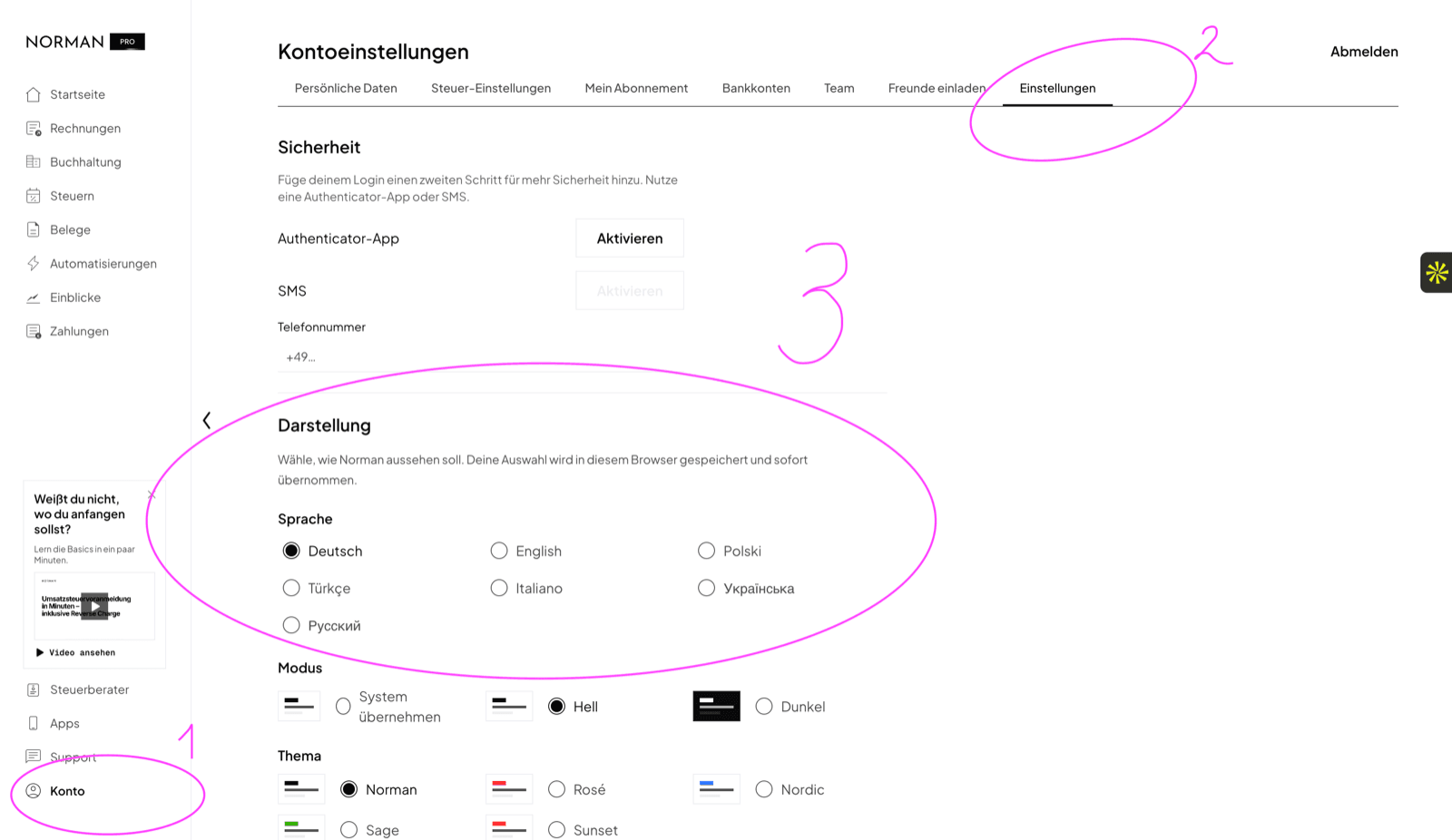
Norman saves the choice in this browser. In another browser, or after you clear your cookies, set the language again.
Language in the iPhone and Android app
- Tap Account at the bottom right.
- Under Personal Details, tap Language and choose Deutsch, English or Polski.
- Tap Save. The app switches right away.
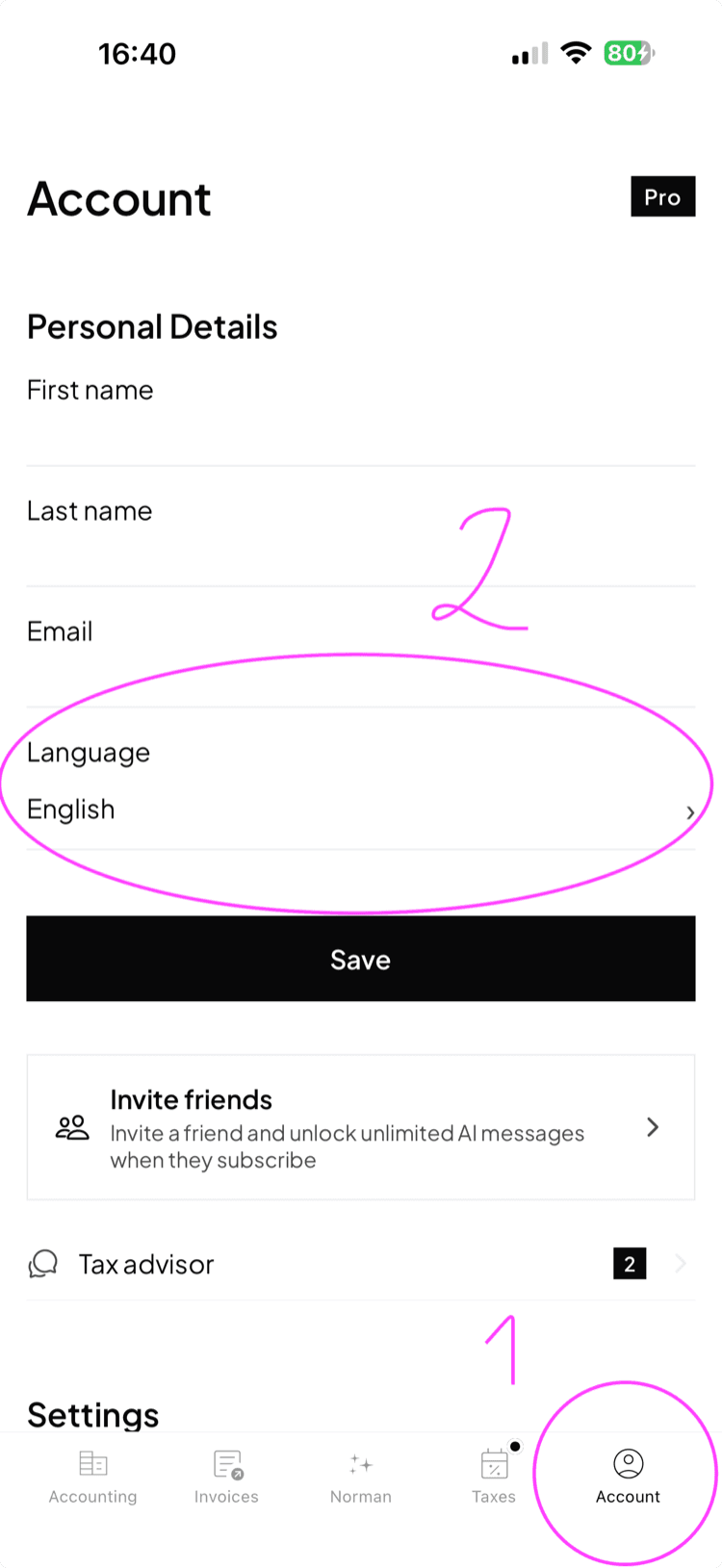
On first start the app takes the language of your phone if that is German, English or Polish. Otherwise it starts in English.
The app and the browser remember the language separately. Set it once on each device.
What the language changes and what it does not
- The language changes every text of the interface.
- Norman shows categories and account names in German, English and Polish. In the other languages they appear in English.
- Your data stays as it is: Norman does not translate descriptions, documents or invoice texts.
- The language of your invoices and quotes is a separate setting. You set it in the template settings and per invoice. Read Invoice template settings.
Mode and theme in the browser
In the Settings tab under Appearance you also find:
- Mode: System, Light or Dark.
- Theme: the colour set, for example Norman, Rosé, Nordic, Sage or Sunset.
Like the language, both apply only to this browser.
Dark mode in the app
Tap Account, then Appearance under Settings. Choose System, Light or Dark.
If the language does not switch
- In the browser: reload the page. Norman stores the language in a cookie. If your browser blocks cookies for app.norman.finance, the language falls back.
- In the app: close the app completely after saving and open it again.
- If only your invoices are in the wrong language, change the language in the template settings.
Related articles
Norman handles the operational finance work
Invoicing, receipts, bookkeeping, and taxes in one workflow: start for free.