
Import a bank statement PDF
Upload your bank's PDF statement, check the balances and operations, and import only what Norman does not have yet.
Updated
Does your bank not connect to Norman, or are days missing because the bank sync stopped? Then import your bank's statement as a PDF. Norman reads the PDF, shows you every operation for review and imports only the ones that are missing.
Import a statement
- Open Accounting.
- Select + Add, then Import statement.
- Drop the PDF into the field or click Choose a file.
- Wait until Statement from … read shows at the top, then click Check and import.
- Check the account, period, opening balance, closing balance and the operations.
- Click Import operations.
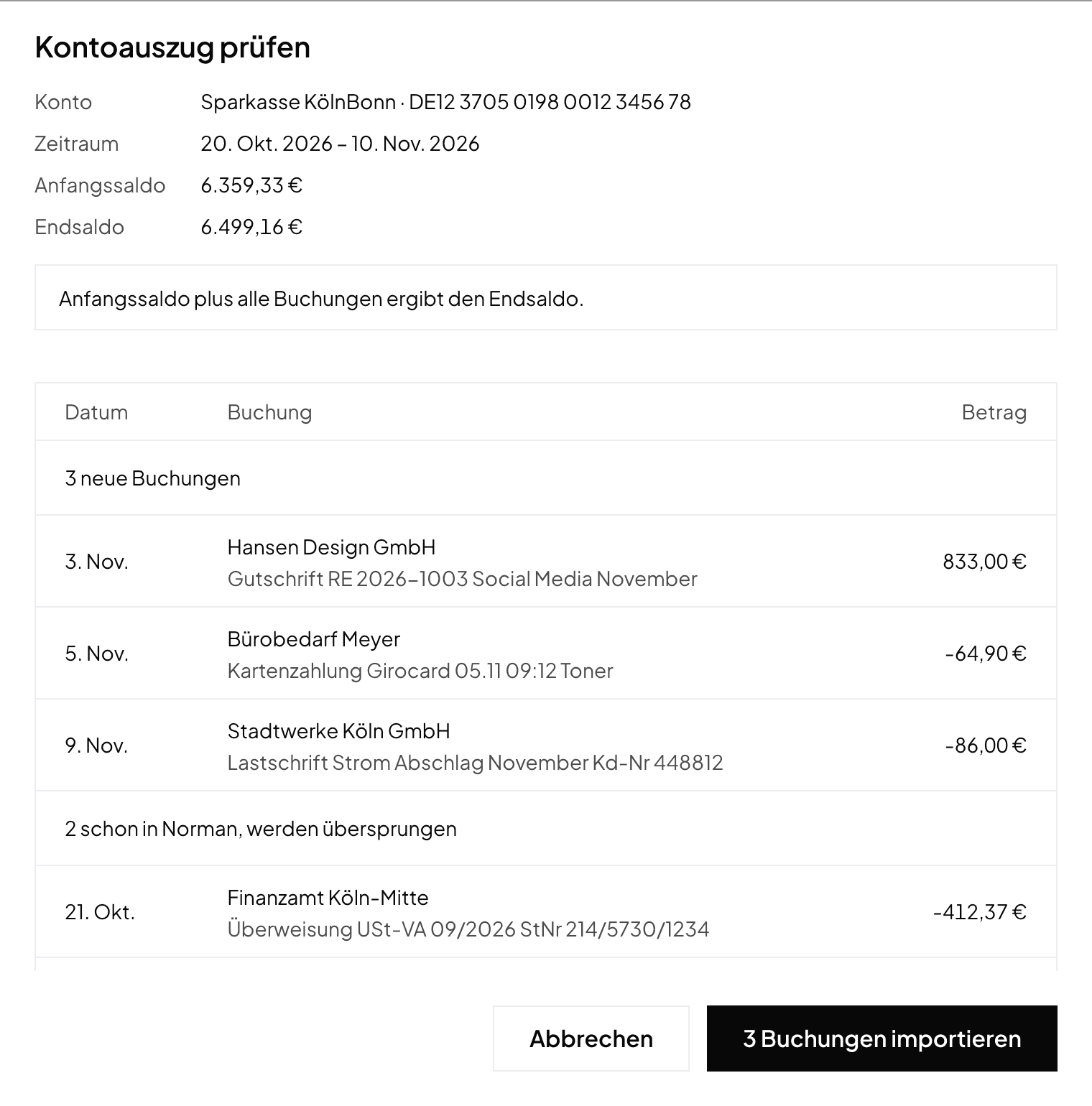
You can also upload the PDF on Home or send it in the chat, on the web and in the app. Norman recognises the statement and sends you a link to review it.
What Norman checks
- Balances: the opening balance plus all operations must give the closing balance. If it does not, Norman shows the difference and asks whether you still want to import the operations it recognized. You decide. You can also upload the PDF again or import your bank's CSV file.
- Duplicate operations: an operation with the same amount, day and direction that is already in Norman is listed under already in Norman and skipped. This includes operations from the bank sync of the same account. So you can also import a statement that overlaps operations you already have.
- If the PDF shows no opening or closing balance, Norman cannot check the total. Compare the operations with your statement before you import.
Which PDFs work
- Statements from German and Polish banks, for example Sparkasse, Deutsche Bank, Postbank, ING, Commerzbank and PKO BP.
- PDFs with text and scanned statements.
- Up to 10 MB and 30 pages. Split longer statements and upload each part.
- No password protection. Upload an unlocked copy.
If your bank gives you a CSV file, you can import that too. See Bank accounts, imports and manual transactions.
After the import
Norman categorises the imported operations like operations from the bank sync. At the top you see how many operations Norman imported and how many it skipped. Review shows only the imported operations.
Imported the wrong statement? Ask Norman in the chat to undo that import. Finalized operations stay as they are.
Norman handles the operational finance work
Invoicing, receipts, bookkeeping, and taxes in one workflow: start for free.