
Issuing invoices in Norman
How to issue a sales invoice: client, dates, lines, numbering, saving a draft, sending by email, invoice statuses and marking payments.
Updated
You issue sales invoices in Norman, and Norman sends them to KSeF. This article covers issuing itself. For KSeF, see The KSeF token and Sending invoices to KSeF.
Before your first invoice
- Open Invoices and click Settings.
- In Business details, check the company name, address and NIP. An sp. z o.o. also fills in its art. 206 KSH details here: see Getting started: an sp. z o.o. in Norman.
- In Payment details, enter the bank account (IBAN) to show on the invoice.
- In Customize template, you can add a logo and choose a colour and font.
1. Create the invoice
- Open Invoices, click Create and choose Invoice.
- Choose the Client or add one with New client. See Clients and products.
- Check the Invoice number, the issue date (Issued) and the Due date.
- In Sale type, choose goods or services. For goods enter the Delivery date, for services the Service date (one day or a period).
- If needed, change the currency and the Invoice language (Polish or English).
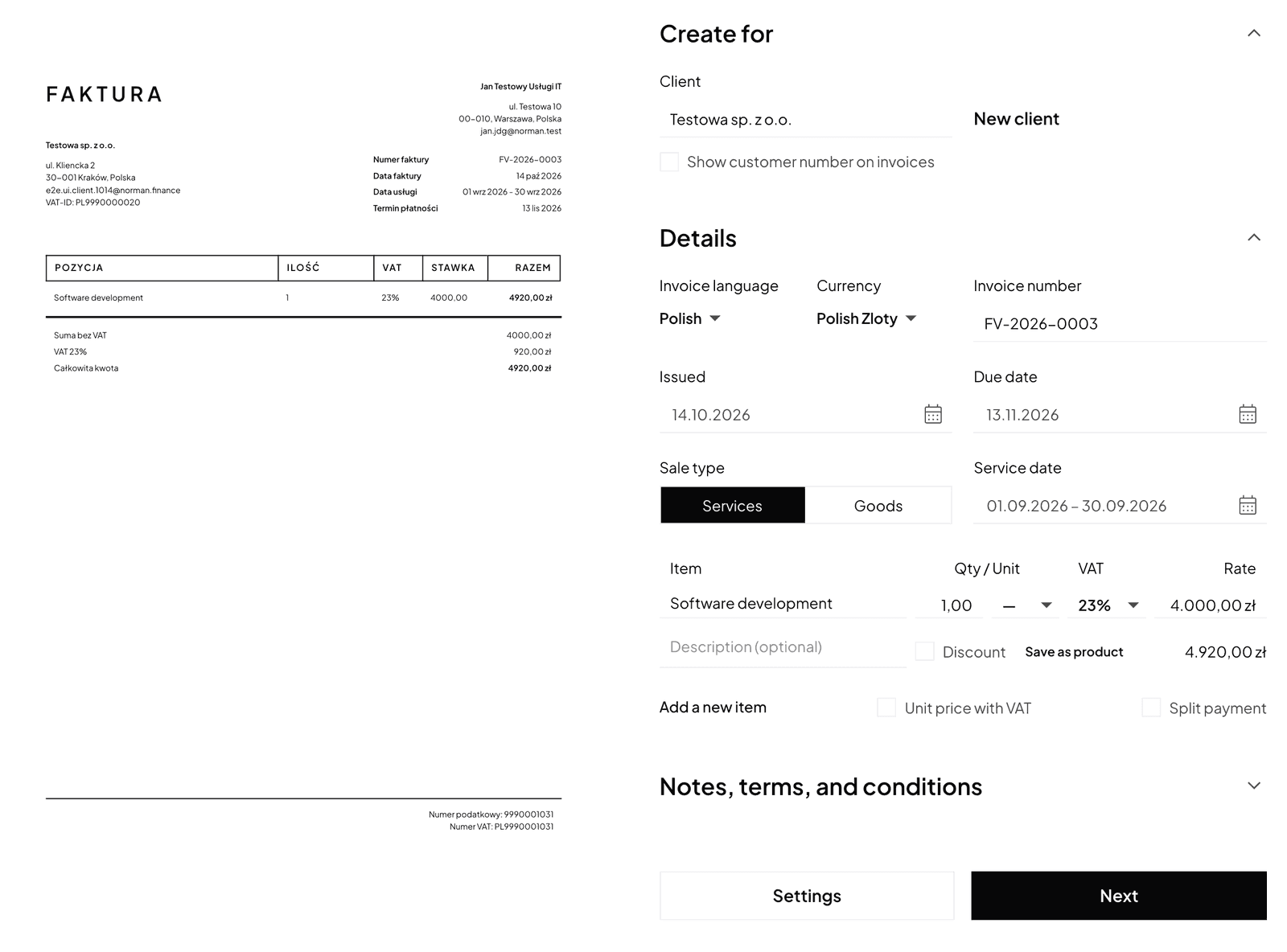
The invoice states the date of the supply or service when it differs from the issue date (art. 106e ust. 1 pkt 6 of the VAT act). That date also sets the month in which the invoice goes into the JPK_V7.
2. Add the lines
For each line, fill in the item, quantity, unit, unit price and VAT rate. You can add a Discount (%). If you enter the gross price, tick Unit price with VAT. Add another line with Add a new item, or pick a line from your product catalogue.

VAT rates and the notes on exemption, reverse charge and split payment are in VAT on the invoice.
3. Save or send
- Save as draft: the invoice is not issued yet and does not go to KSeF.
- In the last step, choose what happens: Send to your client, Repeat automatically, Remind if unpaid, and click Save and send.
An issued invoice goes to KSeF. Once it is in KSeF you cannot edit or delete it: you fix a mistake with a correcting invoice. See Correcting invoices (KOR).
Numbering
Norman numbers invoices automatically. The default format is FV-2026-0001. Each invoice gets the next number, and a number with the year starts again at 1 in a new year. Correcting invoices share the invoice sequence. The number of a removed invoice is never reused.
For another format, change the Invoice number on one invoice: Norman continues from it. There is no separate numbering settings page. An invoice needs a sequential number that identifies it uniquely (art. 106e ust. 1 pkt 2 of the VAT act).
Sending by email
On the send page, click Send. You can tick Send a copy to me. An invoice that goes to KSeF waits for KSeF to accept it: the email goes out only then, with the KSeF number and the QR code in the PDF. Until then the email history shows Waiting for KSeF.
Sending invoices by email is part of the paid plans. You can also download the invoice from its menu (Download) and pass it to your client yourself.
Statuses and payments
An invoice is Draft, Issued, Sent, Unpaid, Overdue, Paid or Cancelled. From the invoice menu you can:
- Mark as paid or Mark as unpaid,
- Download the PDF, and for an invoice in KSeF also the XML and the UPO,
- Duplicate it to start a new invoice from a copy.
When your client pays into an account connected to Norman or imported from a CSV file, Norman can match the payment to the invoice itself. See Matching payments and documents.
Switch to AI accounting with Norman
Connect KSeF and your bank, and your operations land in Norman by themselves. Norman prepares your returns from your documents, and you check them.