
Sending invoices to KSeF: statuses, UPO and the QR code
Which invoices Norman sends to KSeF, what the statuses mean, where to download the UPO and when your client gets the invoice email.
Updated
Once the company has a NIP and a KSeF token, Norman sends each invoice to KSeF right after you issue it, as an FA(3) document. You do not need to click anything. How to issue an invoice is explained in Issuing invoices in Norman.
Which invoices go to KSeF
- Issued invoices (not drafts) dated from the day KSeF became mandatory for your company: 1 April 2026, or 1 February 2026 for the largest companies.
- Correcting invoices and cancellations of an invoice KSeF accepted, as FA(3) KOR. See Correcting invoices in KSeF.
These do not go: proforma invoices, delivery notes and invoices dated before your KSeF start date. Norman does not send advance invoices to KSeF: issue them in the KSeF taxpayer app.
Statuses
You see the status in the invoice list and on the invoice.
| Status | Meaning |
|---|---|
| Sending | Norman is sending the invoice. |
| Submitted | KSeF has the invoice and is processing it. This usually takes a few minutes. |
| Accepted | KSeF assigned a number. You see the KSeF number on the invoice. |
| Failed | Norman or KSeF refused the invoice. The reason is in the tooltip. |
| Outside KSeF | It was recorded as issued outside KSeF on the JPK report. |
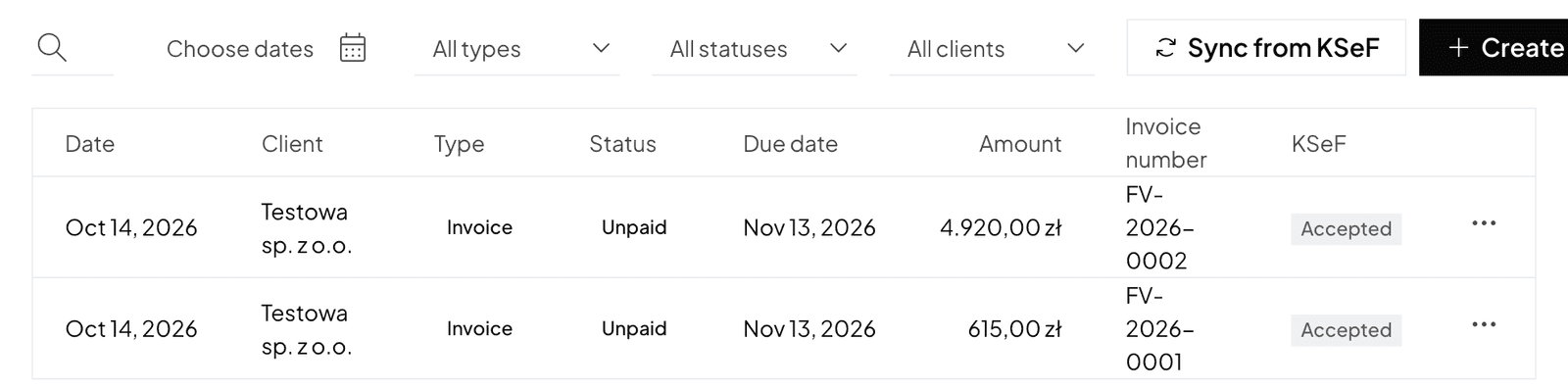
An invoice in KSeF (Sending, Submitted, Accepted) cannot be edited or deleted. You change it with a correcting invoice.
When an invoice shows Failed
- Hover over the status and read the reason.
- Fix the invoice.
- Click the Retry KSeF submission icon.
The most common reasons on Norman's side:
- a VAT-exempt sale without its legal basis: fill in Legal basis of the VAT exemption (art. 113 ust. 1 or 9, or the point of art. 43 ust. 1 of the VAT act);
- a 0% supply of goods to an EU business without the buyer's EU VAT number;
- 0% for an EU consumer: charge Polish VAT;
- an invoice in another currency for which NBP has not published a rate yet: Norman sends it again itself.
If the reason says KSeF asked Norman to wait, do not click retry. Norman sends the invoice again itself.
UPO and the XML file
Once KSeF accepts the invoice, Norman keeps its official receipt (UPO). Download it with Download UPO in the invoice menu or details. That is also where you download the invoice's XML from KSeF.
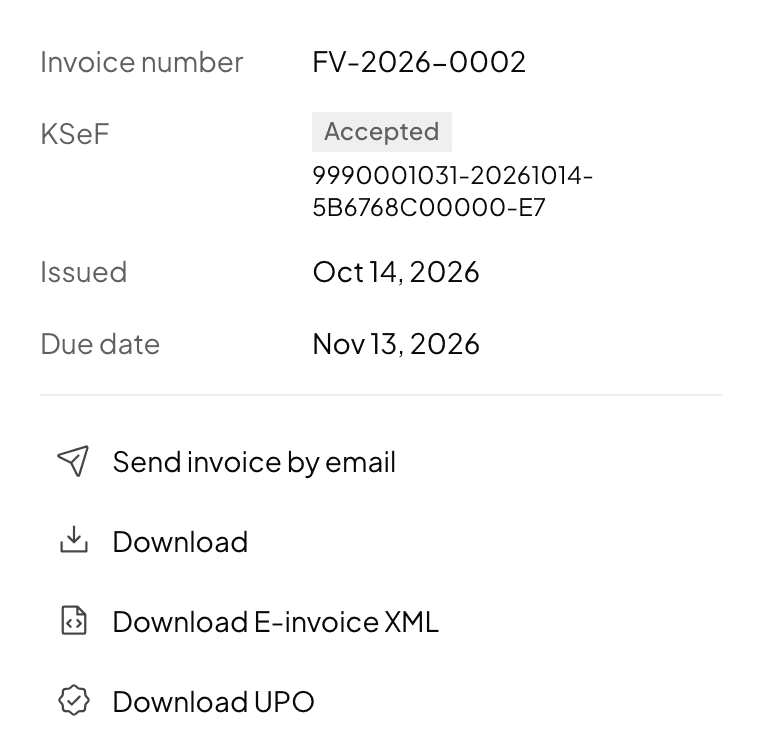
The QR code and the client email
After KSeF accepts the invoice, Norman renders the PDF again: with the KSeF number and the verification QR code (KOD I). The invoice preview in the browser has no QR code; only the PDF has it.
If you send the invoice by email, the email waits for KSeF's acceptance. The email history shows Waiting for KSeF. Your client gets the invoice with the KSeF number and the QR code in the PDF. If KSeF refuses the invoice or does not accept it within two days, the email is not sent and you get a notice. Fix the invoice and send the email again.
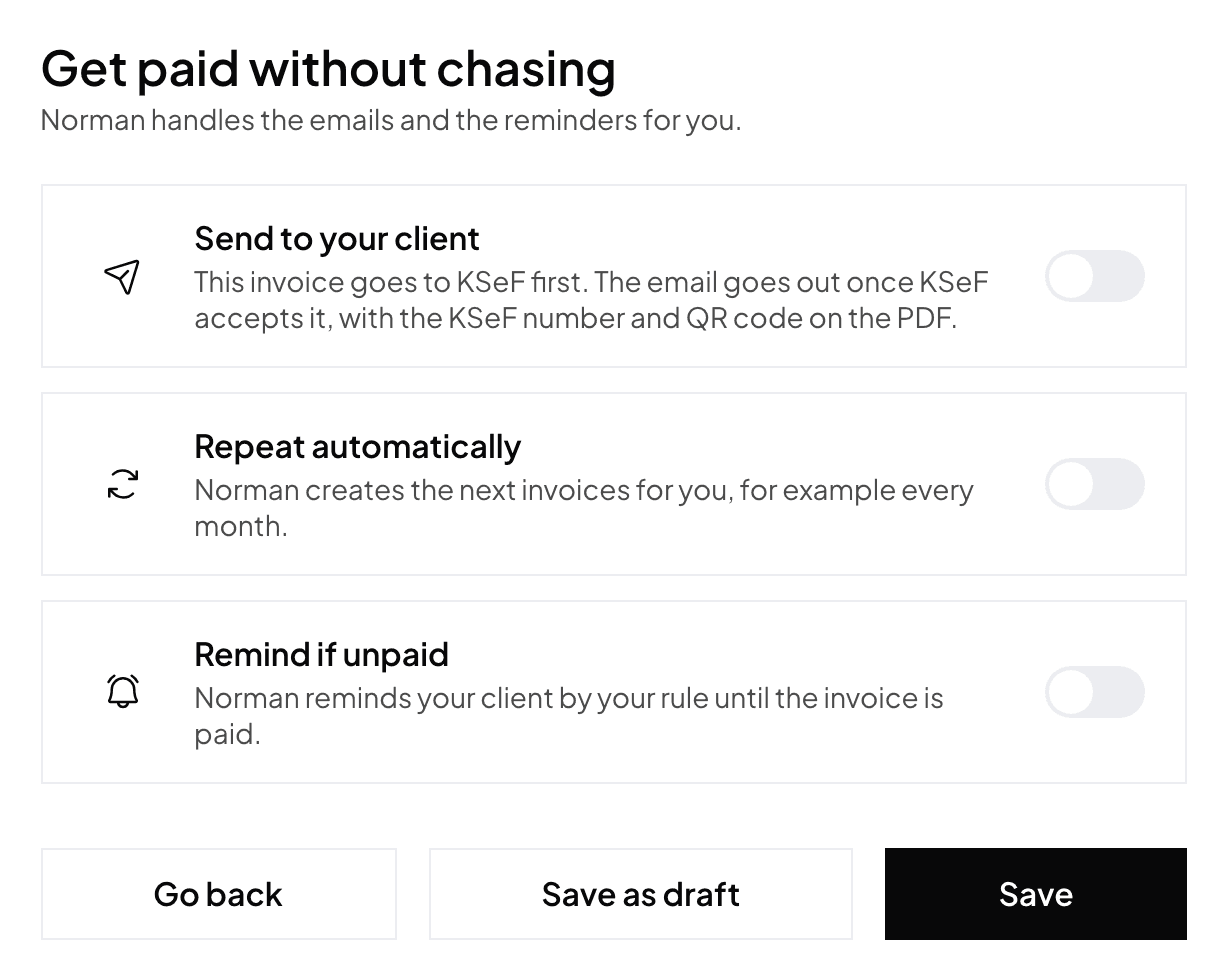
Invoices imported from KSeF
- Sales invoices issued in the KSeF taxpayer app appear in Norman as issued. An invoice with the same number as an invoice in Norman is matched to it.
- Purchase invoices appear among your documents, with the KSeF number and the vendor found by NIP.
Switch to AI accounting with Norman
Connect KSeF and your bank, and your operations land in Norman by themselves. Norman prepares your returns from your documents, and you check them.