
Import the DRA into ePłatnik step by step: KEDU, sending, paying ZUS
Import KEDU in ePłatnik (eZUS, formerly PUE) step by step: load Norman's file, check and sign the DRA with profil zaufany, get the proof of submission and pay all contributions in one transfer to your NRS.
Updated
Norman calculates your contributions and prepares the DRA as a KEDU file. ZUS offers apps no interface for filing documents, so you send the DRA yourself in eZUS, in the ePłatnik application. It takes a few minutes a month. This article walks through the whole month: the file, the import, sending, the transfer and closing the report in Norman.
Once: enter your contribution account number
You pay contributions in one transfer to your contribution account number (NRS, numer rachunku składkowego). It has 26 digits and ZUS assigns it to you alone.
- Find the NRS in eZUS under Dane płatnika → Numery rachunków składkowych (it is also shown under Składki i salda) or in a letter from ZUS.
- In Norman, open Account → Taxes, section ZUS contributions, and enter it in the Contribution account number (NRS) field.
Norman checks that the number has 26 digits and is a ZUS account. The last 10 digits are usually your NIP. If they are not, Norman shows a warning: check the number in eZUS. ZUS sometimes opens the account under another identifier, and such a number is valid too.
1. Download the KEDU file in Norman
- On the Taxes page, open the ZUS DRA report for the month and check the contributions.
- Click Download KEDU file. Below the button you can expand a short How to import the DRA in ePłatnik guide.
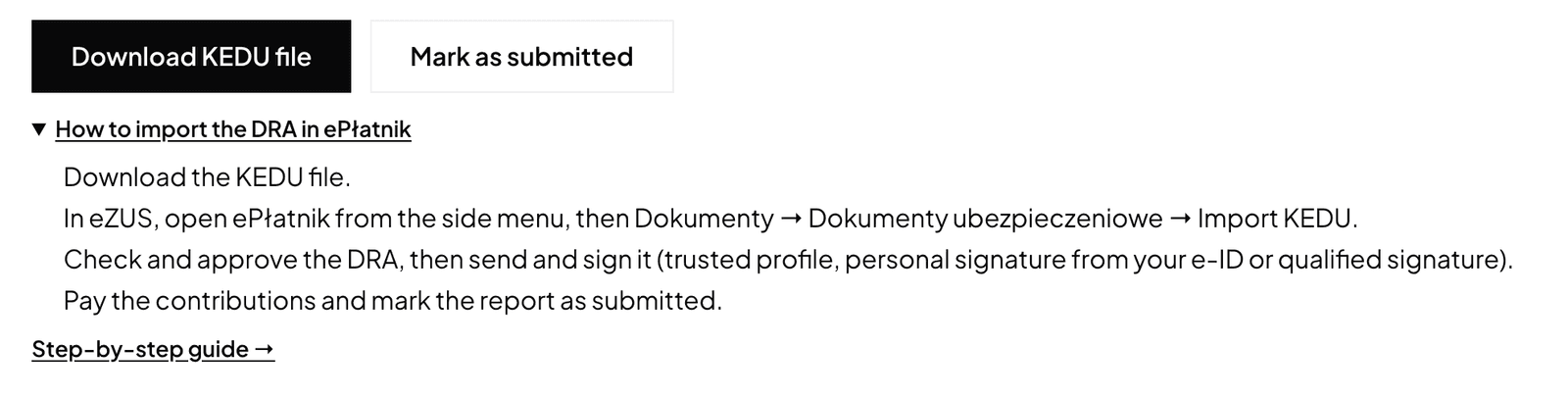
Norman needs the NIP and the PESEL for the file. Do not edit the file before importing it.
2. Import the file in ePłatnik
eZUS and ePłatnik are in Polish only. The steps below quote the Polish labels.
- Log in to eZUS and choose the last item in the side menu, ePłatnik. On first use ePłatnik may sync its records: wait until it finishes.
- Go to Dokumenty → Dokumenty ubezpieczeniowe (Documents → Insurance documents) and choose Import KEDU.
- On the wizard's welcome screen click Dalej (Next).
- Keep the default document types (all) and click Dalej.
- Click Wybierz plik (Choose file), pick the KEDU file you downloaded and click Dalej.
- The last screen lists the imported documents. Pokaż raport (Show report) opens the import report. Click Zakończ (Finish): the DRA is saved in Dokumenty robocze (Draft documents) with the status "roboczy".
ePłatnik is switched on automatically for payers with up to 100 insured persons. If you do not see it in the menu, open Ustawienia → ePłatnik in eZUS and click Aktywuj (Activate).
If the identification data in the file differ from the data ZUS holds, ePłatnik creates a ZUS ZIPA change form by itself. Check what differs. If the ZUS data are the current ones, correct your data in Norman, delete the ZIPA from the drafts and import the file again.
3. Check, approve and send the DRA
- In Dokumenty robocze, select the DRA, click Edytuj (Edit), then Sprawdź (Check). Any errors appear in the Uwagi i błędy (Notes and errors) tab.
- Click Zatwierdź (Approve). Only a document without critical errors can be approved. The DRA moves to Dokumenty zatwierdzone (Approved documents).
- In Dokumenty zatwierdzone, select the DRA and click Wyślij (Send).
- Sign it. ePłatnik accepts:
- profil zaufany (trusted profile): ePłatnik redirects you to sign via login.gov.pl. If you logged in to eZUS with the trusted profile, you do not log in again. Allow pop-ups in your browser;
- podpis osobisty (the personal signature in the e-ID card): click Podpisz (Sign), enter the PIN, then Akceptuj (Accept) and Zakończ;
- a qualified electronic signature: the same, Podpisz, PIN, Akceptuj, Zakończ.
You choose the signing method in your eZUS account settings (field Sposób wysyłania dokumentów w aplikacji ePłatnik).
4. Proof of submission
A sent DRA moves to Dokumenty wysłane (Sent documents). Open it to see the poświadczenie przedłożenia, the proof of submission to ZUS with the delivery date and an identifier. You can print it (Drukuj) or save it (Eksportuj). Later the declaration also appears in eZUS under Składki i salda → Deklaracje składek (ZUS DRA), first as "in transit", then as booked.
5. Pay the contributions
You pay all contributions (social, health and the Labour Fund) in one transfer to your NRS. The transfer title is free text.
The ZUS DRA report page has a Pay contributions card with the transfer details: Recipient, Account number, Amount, Title and Due date. Each value has a copy button. You can also scan the QR code in your banking app and the bank fills in the transfer. Check the details before you confirm the transfer.
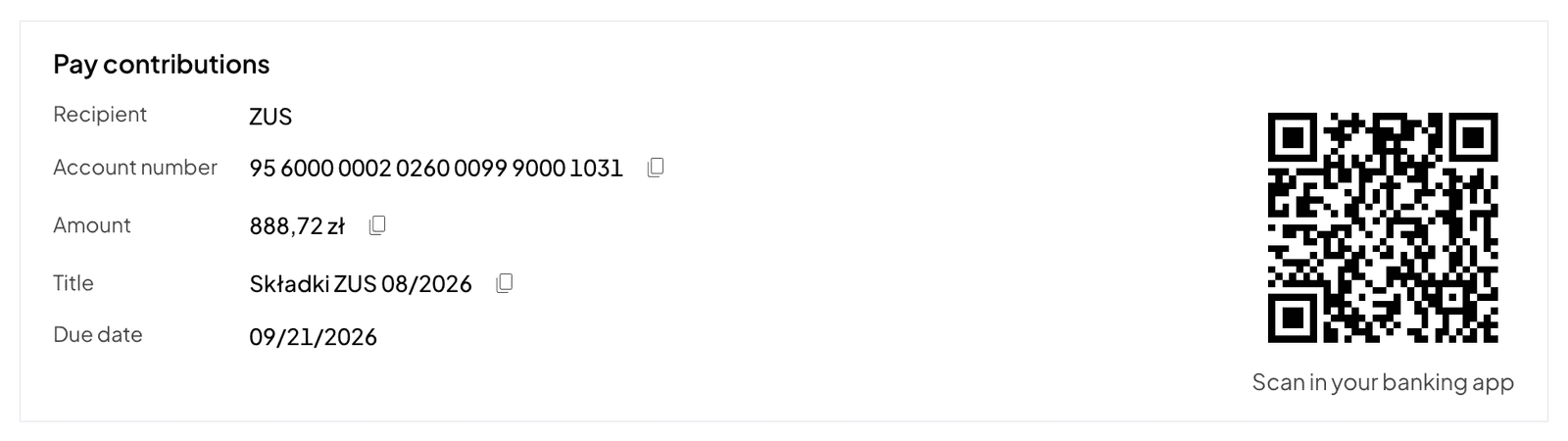
- The amount is the month's contributions. In the April report it also includes the extra payment from the annual health contribution reconciliation. Norman does not subtract an overpayment: ZUS refunds it on an RZS-R request.
- For a month suspended throughout, the amount is 0 and there is no QR code.
- Without an NRS, the card asks you to add your contribution account number in the ZUS settings to see the transfer details and the QR code.
Deadline: if you pay contributions only for yourself, the DRA and the contributions for a month are due by the 20th of the following month (art. 47(1)(3) of the Social Insurance System Act, ustawa o systemie ubezpieczeń społecznych). When the 20th is a Saturday or a public holiday, the deadline moves to the next working day (for the transfer: art. 31 of that act with art. 12 § 5 of the Tax Ordinance; for the DRA: art. 57 § 4 of the Code of Administrative Procedure).
6. Mark the report as submitted
After sending the DRA and paying, go back to the ZUS DRA report in Norman and click Mark as submitted. The month is closed: the reminders for this deadline stop and the report leaves the list of upcoming deadlines.
The Płatnik program instead of ePłatnik
If you prefer ZUS's free desktop program Płatnik (or you report more than 100 insured persons and have no ePłatnik), import the same KEDU file there, check the DRA and send it from the program. You can download Płatnik from zus.pl. The transfer and marking the report in Norman work the same way.
If the import fails
- Import the file exactly as you downloaded it from Norman. A file opened and saved in another program may not load.
- Before closing the wizard, open Pokaż raport: the import report names the document and the reason.
- Critical errors block approval. If they concern amounts or data from Norman, correct the data in Norman, download the file again and import it again. Delete the old version from the drafts.
- If nothing helps, write to us and include the text of the import report.
More on how Norman calculates the contributions: ZUS contributions and the DRA file.
Switch to AI accounting with Norman
Connect KSeF and your bank, and your operations land in Norman by themselves. Norman prepares your returns from your documents, and you check them.