
The JPK_V7: how Norman prepares and files it
Norman prepares your JPK_V7M or JPK_V7K from your documents and files it with the tax office after you approve it. How to check it, sign it, get the UPO and file a correction.
Updated
Active VAT payers file the JPK_V7: a file with the period's VAT records and the VAT return. Norman prepares the file from your documents and, after you approve it, files it with the tax office. A VAT-exempt business files no JPK_V7.
Monthly or quarterly
- JPK_V7M: a file every month, due by the 25th of the following month.
- JPK_V7K: also a file every month. For the first two months of a quarter you file the records only (in Norman: JPK_V7K records with the month, marked Records only, VAT with the quarter). The file for the third month carries the return for the whole quarter. Norman files the quarter only after the records of its first two months are filed.
Deadlines on a weekend or public holiday move to the next working day: see Tax deadlines and reminders. You change the frequency under Account → Taxes, section VAT. Norman creates the JPK reports according to this setting.
What goes into the file
- Sales invoices from Norman and imported from KSeF, in the month of the supply or service (or, without one, of the issue date). Invoices KSeF accepted carry their KSeF number. See Invoices that did not reach KSeF.
- Purchase documents with deductible VAT. See Purchase documents and input VAT.
- Amounts in other currencies, at the NBP rate of the last business day before the tax point.
Before you prepare the file
If your business uses the cash method for its own VAT (art. 21), prepare its JPK outside Norman with your accountant.
Norman needs the NIP, a confirmed tax office and the company email. For a JDG also the owner's first and last name and the PESEL, from which Norman reads the date of birth.
Norman takes the excess VAT carried from the previous return (P_39) from the previous period. If it cannot work it out, for example in your first month in Norman, enter it in Excess VAT from the previous return (P_39) on the report page. If there was none, enter 0.
1. Check the report
- Open Taxes and choose the JPK report for the period.
- Click Preview and download XML. If something is missing, Norman lists the documents and the reasons above the buttons.
- Check the amounts: output VAT, input VAT and VAT due.
The report page has two tabs:
- Declaration: the amounts and up to 3 hints under Why purchases are not in this amount, for example an expense with VAT but no invoice, an invoice received later, or a receipt without your NIP. Each hint leads to the fix.
- VAT register: the sales and purchase rows as they go into the file, with links to the documents, markers and declaration fields. A purchase row deducted on your decision says "deducted on the owner's decision" (see VAT in Norman step by step). Under Not in this month you see the documents that are not in this month, with the reason, for example an invoice received later, which goes into another period, or a receipt above PLN 450, which needs an invoice.
When an operation and its purchase document differ, the VAT register shows a warning on the row, for example "Seller NIP from the operation: the document shows another". A difference from the KSeF invoice is shown more prominently ("Differs from the KSeF invoice, the tax office compares them"). A row from an unreviewed operation is marked Unreviewed.
If the period has unreviewed operations, the report page and the filing step show, for example, "3 operations are not reviewed yet" with a Review link. You can still file the JPK_V7, but it is worth reviewing them first.
Excess VAT: carry forward or refund
When input VAT exceeds output VAT, Norman carries the excess forward to the next period by default (Carry forward to the next period). On the open report page you can choose Refund to my bank account, in full or in part, and a Term (art. 87 of the VAT act):
- 40 days: the standard term (ust. 2),
- 25 days to the VAT account (ust. 6a),
- 25 days, paid purchase invoices (ust. 6),
- 15 days, online cash registers (ust. 6d and 6e),
- 180 days, no taxable sales (ust. 5a).
The 180-day term applies only when the period had no taxable sales, and cannot be chosen otherwise. The 25-day term for paid invoices and the 15-day term require, among other things, 12 months as an active VAT payer and an excess carried in from earlier returns of at most PLN 3,000; the 15-day term also needs the JPK filed on time. Norman checks what it can see, and you confirm the other conditions yourself. The refund goes to the bank account reported to the tax office (in CEIDG or on the NIP-1, shown on the biała lista): the JPK does not state the account number.
Sp. z o.o.: who signs the JPK
A natural person signs a company's JPK_V7, with a qualified signature or Profil Zaufany (the trusted signature). A company cannot sign it with authorization data or with a qualified electronic seal. Whoever signs, a board member too, needs a UPL-1 power of attorney registered by the tax office, or MF refuses the file with code 420. The board files the UPL-1 under the company's KRS representation rules, most easily in e-Urząd Skarbowy, at least one working day before filing (how to appoint an attorney).
In Submit JPK, Norman asks Who signs and sends the company's JPK? and keeps the answer for later periods:
- I'll sign with a qualified signature: Norman sends the JPK once you sign it (steps below). A qualified certificate with your PESEL comes from a provider on the NCCert register, such as Certum (SimplySign), Sigillum, mSzafir or EuroCert. It usually costs PLN 200 to 400 gross for the first year, on a card with a reader or in the cloud.
- I'll file it myself in Klient JPK_WEB: download the file with Download XML, load it in MF's free Klient JPK_WEB app, sign it with Profil Zaufany or the qualified signature of a person with a UPL-1, and send it. Then enter the Reference number from the UPO in Norman, or upload the UPO file, and click Mark as filed. Norman keeps the number with the report; your UPO is the proof of filing.
- My accountant files it (UPL-1): file a UPL-1 for your accountant and invite them to Norman under Account → Team. Your accountant signs the JPK with their own signature. If they send it from their own software, enter the UPO number in Norman afterwards.
e-Urząd Skarbowy does not send a company's JPK_V7: the organisation account is for letters and requests, and e-mikrofirma is for sole traders.
2. File from Norman
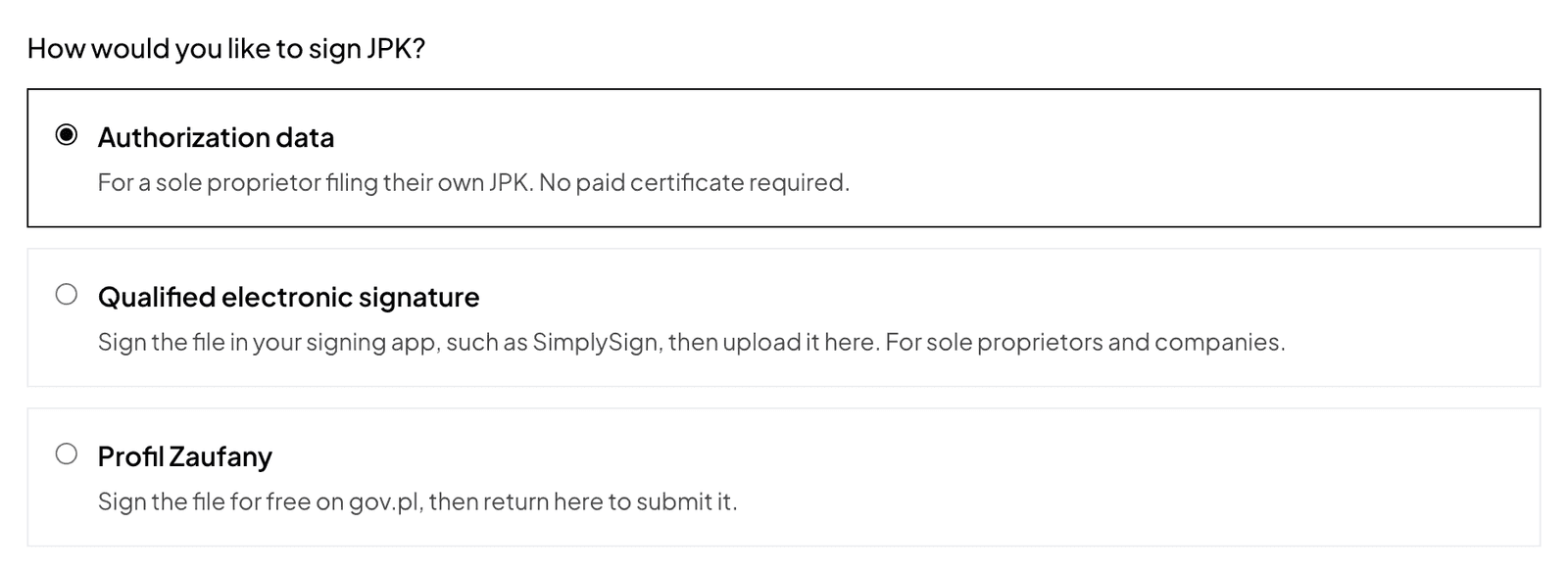
In the Submit JPK section of the report page, choose how to sign the file (How would you like to sign JPK?):
- Authorization data (JDG only): enter the revenue from your tax return or annual tax calculation for the year before last, exactly as on that return. It is revenue, not income. If you filed no return for that year, enter 0. No paid certificate needed.
- Profil Zaufany (JDG; a company signs with a qualified signature for now): click Prepare for signing and download the file with Download signing file. Click Sign on gov.pl, upload the file in the gov.pl service and sign it with Profil Zaufany. Download the signed XML file and upload it in Norman (up to 100 KB). Signing is free.
- Qualified electronic signature (JDG and companies): click Prepare for signing, download the file with Download signing file, sign it in your signing app (for example SimplySign, as XAdES with the signature inside the file) and upload the signed file. For a company, a person with its UPL-1 power of attorney signs, a board member too.
Then tick I have checked the report details and amounts. and click Send JPK to the tax office. Before that, Norman says: "Norman will send the JPK_V7 to the tax office. This files your return."
Only the company owner can file, with a verified email address and a plan that files: JDG or, for a limited company, Sp. z o.o. Max. On other plans, download the file and file it yourself.
3. The UPO
After you send the file you can close the page. Norman checks the outcome with the Ministry of Finance and keeps the UPO once the file is accepted. You see Filed: MF accepted the return and issued the UPO and the buttons Download UPO and Download filed JPK. Both files also go to Files. You get an in-app notice, a push and an email with the UPO attached.
If MF refuses the file, Norman shows MF's code and reason. If you see Submission outcome needs checking, do not send the file again: click Check status, and if there is no reference number, contact support.
4. Pay the VAT
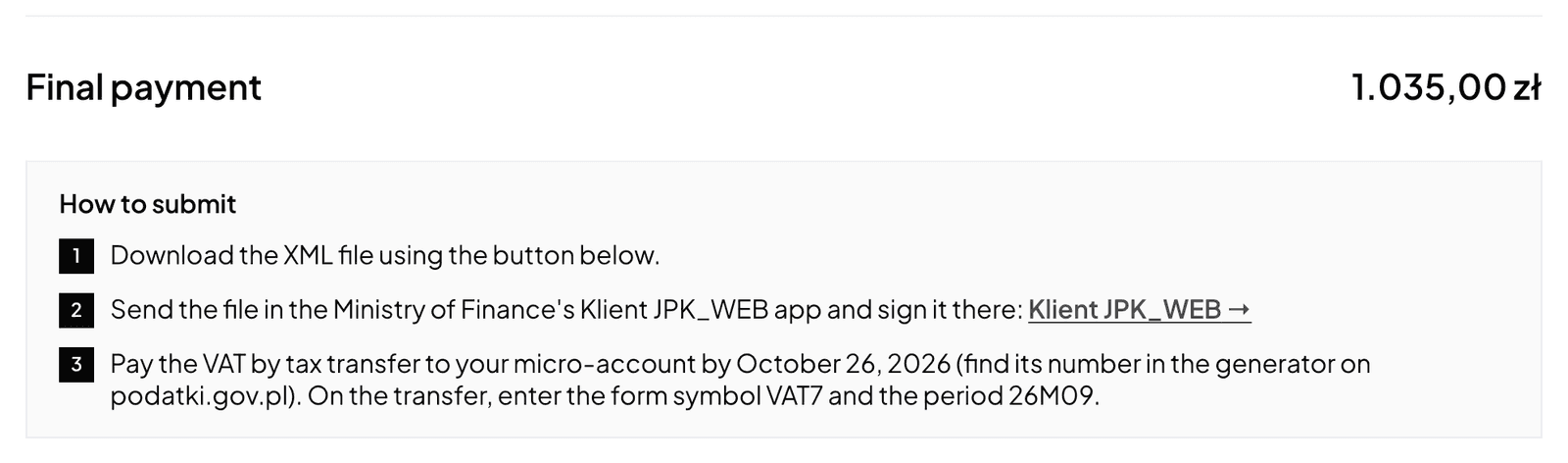
Pay the VAT by tax transfer to your tax micro-account (mikrorachunek podatkowy) by the 25th of the following month. You find the micro-account number with the generator on podatki.gov.pl. In the transfer, enter the form symbol VAT7 (or VAT7K) and the period, for example 26M09 for September 2026 or 26K03 for the third quarter.
Correcting a JPK_V7
Norman corrects only a return it filed.
- On the filed report, click File a correction.
- Norman prepares the whole file again from the current documents and shows the filed amounts next to the corrected ones.
- Enter the reasons for the correction. They are required when the correction shows an overpayment above PLN 10,000 (art. 81 § 2b of the Tax Ordinance), and optional otherwise.
- Confirm that the correction replaces the return MF accepted, and click Send the correction to the tax office.
If the correction changes the excess carried into a later return you have already filed, Norman asks you to correct that one too. A return filed outside Norman you correct yourself.
When you change the Received on date of a purchase document so that the purchase moves into or out of a month with a filed JPK, Norman asks you to confirm. After Save and prepare a correction, it marks the filed return for correction and drafts the reasons. A return filed outside Norman is marked too, but you file its correction yourself.
Filing it yourself: Klient JPK_WEB
You can also download the XML and file it in the Ministry of Finance's Klient JPK_WEB app. There you sign it with a qualified signature, a trusted signature (Profil Zaufany) or, for a sole trader, authorization data. Then mark the report as filed in Norman. A company also records the UPO number there (the I'll file it myself in Klient JPK_WEB path). The e-mikrofirma app does not work for this: it only files a JPK it builds itself.
Tax autopilot
Under Taxes → Tax autopilot, tab JPK filing, you can switch on automatic preparation: Norman prepares each finished period, and you check the documents and amounts and approve them with Approve and choose authorization. Approval alone sends nothing: you then authorize the send in the autopilot or on the report page. See Approving the JPK_V7: prepare, check and approve.
Switch to AI accounting with Norman
Connect KSeF and your bank, and your operations land in Norman by themselves. Norman prepares your returns from your documents, and you check them.