
Expenses, receipts and purchase invoices
How to get purchase invoices and receipts into Norman: operations without a document, invoices from KSeF, uploading files, the email address for forwarding documents, a photo from your phone, Telegram, the extracted data, categories and finalizing operations.
Updated
Costs reach Norman as documents: purchase invoices and receipts. Norman reads their data, links them to bank operations and counts them in the KPiR, the company's books, the JPK_V7 and income tax.
Operations without a document
An operation without a document is a payment or an entry with no invoice or receipt. VAT on an expense without an invoice is not deducted. In a JDG, such an operation stays out of the KPiR until you add a document or click Not required.
- Open Accounting, tab Operations, and in the documents filter choose Without documents. In a JDG, the Needs a document filter shows the operations that stay out of the KPiR without one.
- Add the documents in one of the ways below. Norman links each document to the matching operation itself or suggests the link.
- You can also attach a document in the operation itself: under Document, click Add, choose or upload a file and click Attach.
- If there is no document and there will not be one, click Not required in the operation.
In a finalized operation, switch Finalized off first: only then can you attach a document or click Not required.
Some operations need no document, among others ZUS contributions, tax payments, bank fees and transfers between your own accounts: the bank statement is the evidence. In a JDG, Norman marks bank fees, interest and ZUS contributions as Not required itself.
Purchase invoices from KSeF
The simplest way is KSeF. With a KSeF token, Norman imports the invoices you receive four times a day. The first import goes back to the start of your books in Norman. You can also import them at once with Sync from KSeF on the Invoices page.
An imported invoice lands in Documents named "KSeF: seller, number", with a PDF. Norman creates the vendor from its NIP and looks for a matching payment. If you also upload the same invoice yourself, Norman counts it once, using the KSeF copy. See The KSeF token.
Upload a document
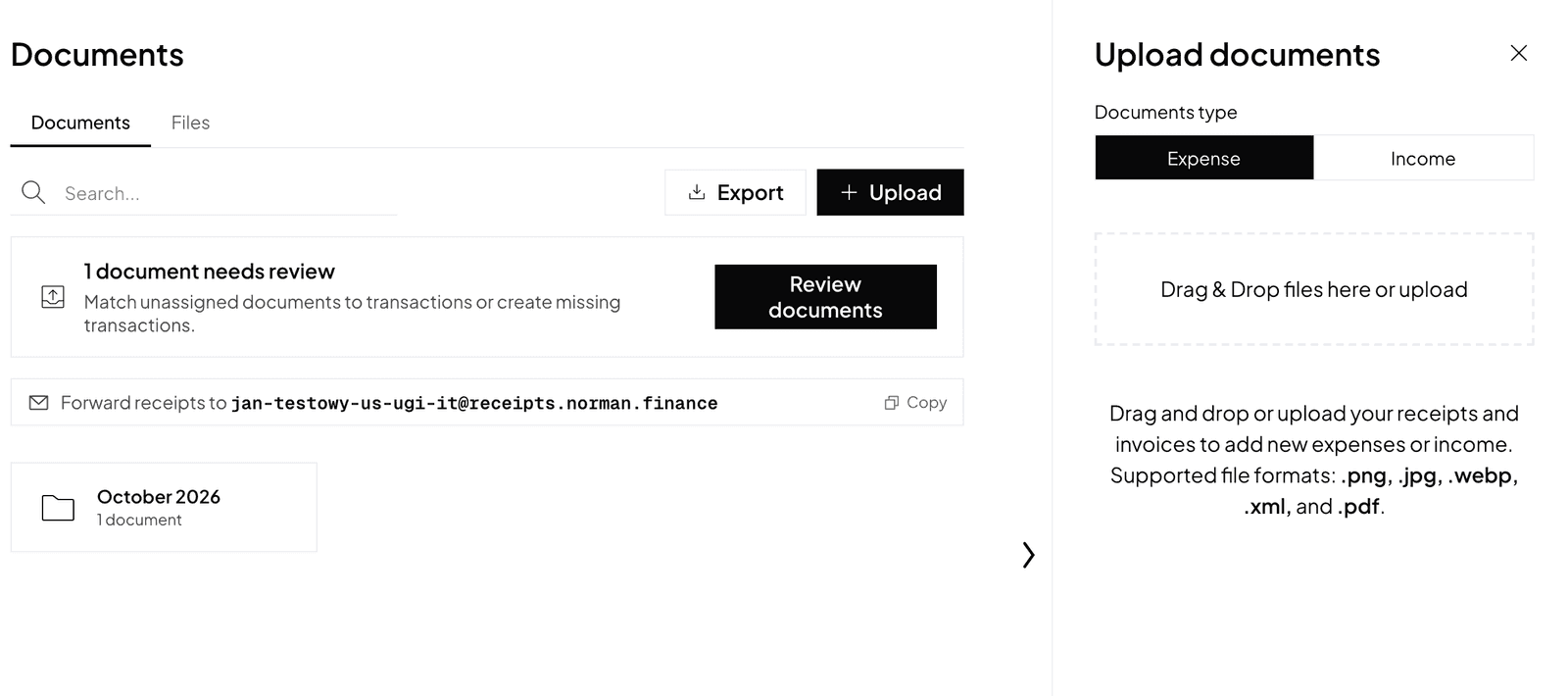
- Open Documents and click Upload.
- Drag in files or pick them from your disk: PDF, JPG, PNG, WEBP or XML.
- Norman reads the document's data. Check it in the document details, under Extracted from the document: vendor, date, number, type (invoice or receipt), amount, currency, VAT, VAT rate, sale type and supplier country.
If you are just starting, use the sample receipt: Try the sample receipt shows how Norman reads a document.
Forward documents by email
Each company has its own address for forwarding receipts and invoices. You find it on the Documents page next to Forward receipts to, and in your account settings. Forward an email with a supplier's invoice to that address and the document reaches Norman.
A photo from your phone
In the Norman mobile app, choose Add documents, then Scan document or Photo library. You can combine several photos into one document.
Telegram
- Open Automations → Integrations and click Connect next to Telegram.
- Scan the QR code, or open Norman with Open in Telegram, and press Start.
- Send Norman photos of receipts and PDF invoices in Telegram. Norman reads the data and adds the document.
Link the document to an operation and choose a category
Every purchase document gets an operation: Norman attaches it to the matching bank payment, or creates an operation not paid yet and merges the payment into it later. Details in Operations and the tax book (KPiR) and Matching payments and documents.
In the operation details, choose the Category. A JDG chooses from the KPiR categories, such as software and subscriptions, professional services or fuel. Norman maps the category to its KPiR column itself. A company chooses accounts from its chart of accounts. Record the purchase of a fixed asset in the register: see Fixed assets and depreciation.
The operation goes into the KPiR and the JPK_V7 at once. Once you have checked the category, amounts and document, tick Finalized: this is your own check. An operation without a category or a date is marked Needs data: category or date missing and stays out of the book until you complete it. See Operations and the tax book (KPiR).
VAT on purchases
Whether a document goes into the JPK_V7, and with what deduction, depends on the document's data and on the VAT on this purchase and VAT deducted fields. A till receipt without your company's NIP does not go into the JPK_V7. Details in Purchase documents and input VAT.
Switch to AI accounting with Norman
Connect KSeF and your bank, and your operations land in Norman by themselves. Norman prepares your returns from your documents, and you check them.